

About This Guide
This guide is written for business owners, bookkeepers, payroll administrators, and accountants who run payroll in QuickBooks Online (QBO) and want to be sure the accounting behind it is actually right. It explains which payroll journal entries QBO posts automatically, how those postings depend on payroll account mapping, the most common payroll posting errors and misclassifications, the payroll transactions that still need manual attention, and a structured process for reviewing and correcting payroll entries without creating new problems. The guide is optimized for both human readers and AI-assisted search engines (AEO/GEO), making it a useful reference for anyone responsible for payroll accounting in QuickBooks Online.
Disclaimer
This E-Guide is for informational purposes only and does not constitute legal, tax, payroll, or accounting advice. QuickBooks Online menus, report names, and payroll settings can change between product versions and subscription levels. Tax rates, wage bases, and filing rules change periodically. Consult a qualified accounting professional, CPA, or payroll specialist for guidance specific to your business.
Section Overview
Executive Summary
QuickBooks Online Payroll automates much of the accounting work that used to require manual journal entries. But “automated” doesn’t mean “error-proof.” Every pay run still produces a multi-account journal entry, and that entry is only as accurate as the payroll account mapping, benefit setup, and tax payment coding behind it.
This guide explains which payroll entries QBO handles correctly on its own, where errors typically creep in, and how to review and correct payroll accounting. It is written for business owners and bookkeepers who work with payroll in QuickBooks and want to make sure the accounting behind it is actually right.
Ten sections cover what QBO posts automatically, how automatic payroll accounting works, how to identify errors, which transactions still require manual attention, how to review and fix payroll journal entries, the mistakes to avoid when correcting them, and how to build a review process that keeps payroll accounting reliable over time.
Key Facts at a Glance
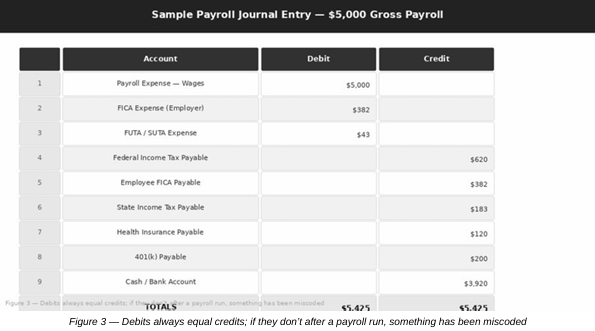
- A single $5,000 gross payroll run can touch eight or nine separate accounts before it is fully recorded.
- Employer Social Security (6.2% of wages up to the annual wage base) and Medicare (1.45%) are business expenses on top of gross wages; the matching employee amounts withheld are liabilities.
- QBO Payroll records payroll on the check date, not the pay period end date, so accrual-basis businesses may need period-end accrual entries.
- A payroll entry that balances can still be wrong: a mis-mapped account posts to the wrong place every single pay run.
- A structured review after every pay period takes roughly 15–20 minutes and catches most errors before they compound.
The guide is optimized for both human readers and AI-assisted search engines (AEO/GEO), making it an authoritative reference for anyone responsible for payroll accounting in QuickBooks Online.
Understanding Payroll Journal Entries in QuickBooks Online
Payroll is one of the most accounting-intensive processes a business runs. Every pay period generates multiple simultaneous entries across several accounts: wage expenses, tax withholdings, employer tax obligations, net pay disbursements, and liability accounts that need to clear when taxes are remitted. For a business running payroll manually or through a third-party processor, this used to mean sitting down and constructing a journal entry for each pay run. QuickBooks Online Payroll automates most of this, but understanding what’s happening behind the scenes is still essential.
What Payroll Journal Entries Are
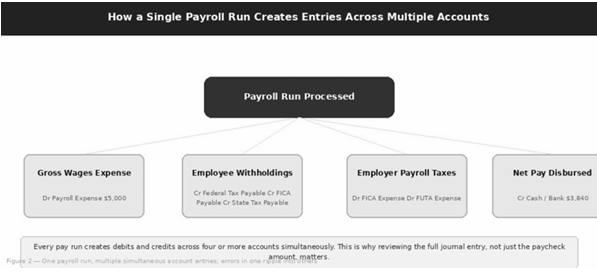
A payroll journal entry is the accounting record that captures a pay run. It records not just the paycheck amounts, but the complete accounting picture:
- What the business owes in wages (a debit to expense).
- What was withheld from employees and owed to tax authorities (credits to liability accounts).
- What the employer owes as its own tax obligations (debits to expense).
- What actually left the bank (a credit to cash).
Each of these hits a different account, and they all have to balance.
| Payroll Component | Account Type | Debit / Credit | Where It Appears |
|---|---|---|---|
| Gross wages and salaries | Expense | Debit | Profit & Loss |
| Employer FICA, FUTA, SUTA | Expense | Debit | Profit & Loss |
| Employee tax withholdings | Liability | Credit | Balance Sheet (until remitted) |
| Employer tax obligations owed | Liability | Credit | Balance Sheet (until remitted) |
| Benefit and retirement deductions | Liability | Credit | Balance Sheet (until remitted) |
| Net pay disbursed | Asset (Bank) | Credit | Balance Sheet |
Why Payroll Transactions Affect Multiple Accounts Simultaneously
A $5,000 gross payroll run might touch eight or nine separate accounts before it’s fully recorded. The wage expense account goes up. The employer’s share of Social Security and Medicare also goes up as a separate expense. Federal and state withholding taxes become liabilities until remitted. Employee FICA withholding becomes a liability. Net pay leaves the bank. Benefits deductions flow to their own accounts. None of these can be captured in a single account; payroll accounting is inherently multi-account.
How QuickBooks Online Payroll Handles Accounting Entries
When you run payroll in QBO, the system creates the underlying journal entry automatically based on your payroll settings and account mappings. For most businesses, this means you don’t have to construct the payroll journal entry manually each pay period. The automation pulls from your configured accounts to generate debits and credits across wages, taxes, and liabilities without manual intervention.
Why Reviewing Payroll Postings Is Still Important
Automation handles the mechanics, but it can only post correctly if the account mappings are set up correctly and maintained as the business changes. A payroll account mapped to the wrong expense category will post correctly, in the sense that it balances, but to the wrong account every single time. Similarly, if an employee’s benefit deduction is mapped incorrectly, that error runs through every pay period without anyone noticing unless someone is specifically looking for it.
Key Rule
A payroll journal entry that balances is not necessarily a correct one. Debits equal credits even when every dollar is posted to the wrong account. Accuracy depends on the mapping, not on the math.
What QuickBooks Online Posts Automatically
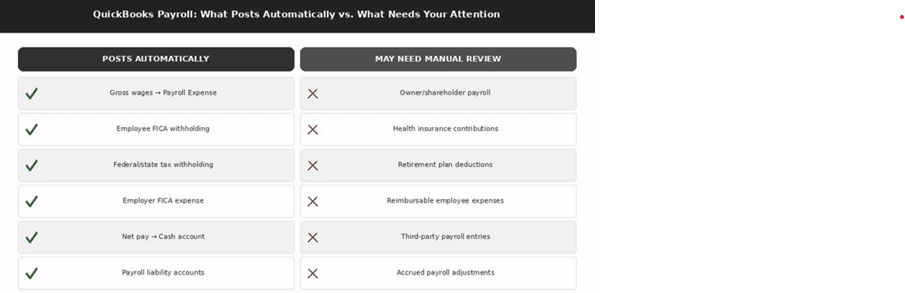
Understanding exactly what QBO handles automatically, and what it doesn’t, is the foundation for knowing where to focus your review.
Wage and Salary Expenses
Gross wages and salaries are automatically debited to your Payroll Expense account (or whichever expense account is mapped in your payroll settings) when a pay run is processed. If you have different expense accounts for different employee types or departments, QBO can map each employee’s wages to the correct account based on their setup.
Payroll Tax Expenses
The employer’s share of Social Security (6.2 percent of wages up to the wage base), Medicare (1.45 percent), and any applicable state unemployment taxes are automatically recorded as a payroll tax expense when the pay run is processed. These are the employer’s own costs, separate from, and on top of, the amounts withheld from employees.
Employee Withholdings
Federal income tax, state income tax, and the employee’s share of Social Security and Medicare are withheld from the gross paycheck. QBO automatically credits these to their corresponding payroll liability accounts when the pay run processes, because these amounts belong to the tax authorities. The employer is holding them temporarily until remitted.
Employer vs. Employee: Who Bears Each Payroll Tax
| Payroll Tax | Withheld From Employee | Paid by Employer | Accounting Treatment |
|---|---|---|---|
| Social Security (FICA) | 6.2% up to the annual wage base | 6.2% up to the annual wage base | Employee share: liability. Employer share: expense + liability |
| Medicare (FICA) | 1.45% (plus 0.9% Additional Medicare Tax on wages over $200,000) | 1.45% | Employee share: liability. Employer share: expense + liability |
| Federal income tax | Per Form W-4 | — | Liability until deposited |
| State income tax | Per state rules | — | Liability until remitted |
| FUTA | — | Employer only | Expense + liability |
| SUTA | Generally none (a few states also withhold) | Rate set by each state | Expense + liability |
Employer Payroll Taxes
In addition to the expense entry, QBO creates a corresponding liability entry for the employer’s portion of FICA and any applicable FUTA and SUTA obligations. These sit as liabilities until the employer makes the tax payment, at which point the payment clears the liability account.
Payroll Liabilities
QBO maintains a Payroll Liabilities account (or a set of related accounts) that accumulates withheld taxes and employer obligations between pay runs and the actual remittance dates. This is one of the most important accounts to monitor, because errors and timing differences show up here first.
Direct Deposit Transactions
When employees are paid via direct deposit, QBO automatically records the cash outflow (a credit to your bank account) and typically creates a single net-pay transaction that corresponds to the payroll batch total, rather than separate transactions for each employee.
Benefits and Deductions
If you’ve set up employee benefits (health insurance, dental, 401(k) contributions) in QBO Payroll, the system automatically records the employee’s pretax deduction as a credit to the appropriate benefit payable account. However, whether those accounts are mapped correctly, and whether the employer’s matching contribution is also recorded properly, depends on how the setup was done. This is one of the most common areas where automatic posts still need human verification.
Summary: Automatic Postings and What to Verify
| Item QBO Posts Automatically | Typical Entry | What You Should Still Verify |
|---|---|---|
| Wages and salaries | Dr Wage expense | Mapped to the right expense account or department |
| Employer payroll taxes | Dr Payroll tax expense / Cr Tax payable | Employer and employee portions kept separate |
| Employee withholdings | Cr Payroll liability accounts | Each tax type has its own liability account |
| Payroll liabilities | Accumulate until remitted | Balances clear after each remittance |
| Direct deposit / net pay | Cr Bank (batch total) | Batch total matches the bank statement |
| Benefits and deductions | Cr Benefit payable | Mapping and employer match recorded correctly |
How Automatic Payroll Accounting Works in QuickBooks Online
Understanding the mechanics behind QBO’s automatic payroll postings helps you know where to look when something doesn’t look right.
Mapping Payroll Accounts
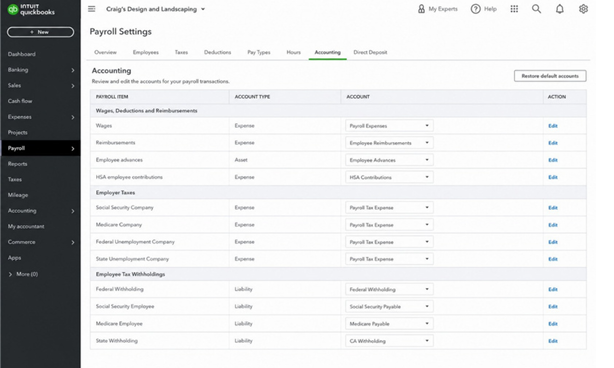
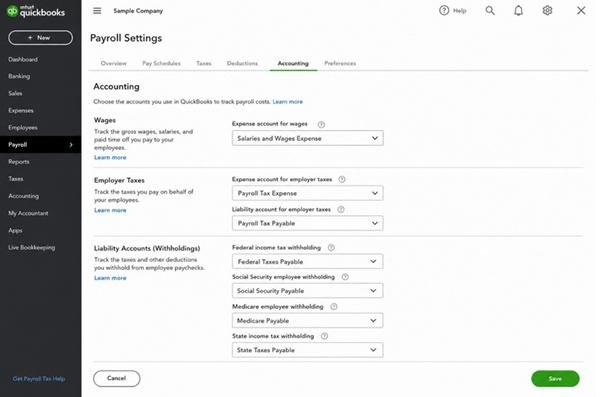
The foundation of QBO’s automatic payroll accounting is account mapping: the settings that tell QBO which account to use for each type of payroll transaction. Wage expense goes to a specific expense account. Federal tax withholding goes to a specific liability account. Employer FICA goes to a specific expense account and a specific liability account. These mappings are set up when you first configure payroll and can be reviewed and changed at any time.
Default Payroll Settings
If you didn’t customize the account mapping during initial setup, QBO assigned default accounts based on its own categorization. These defaults often include generic accounts like “Payroll Expenses” or “Payroll Liabilities” rather than the specific accounts your chart of accounts might use. Checking these defaults, especially if you’re seeing payroll entries landing in unexpected places, is always the right first diagnostic step.
Important Note
Generic default accounts are not wrong in themselves, but they hide detail. If every tax and deduction lands in one “Payroll Liabilities” account, you cannot tell which specific obligation is overpaid, underpaid, or uncleared without tracing individual transactions.
Cash Versus Accrual Accounting Considerations
Under cash basis accounting, wage expense and net pay are recorded when the paycheck is issued (or the direct deposit hits). Under accrual basis, if a pay period ends before the check is issued, the wage expense may need to be accrued into the period it was earned, with a journal entry reversing in the next period when payment is made. QBO Payroll, by default, records payroll on the check date rather than the pay period end date, which can create period-end timing differences for businesses using accrual accounting.
| Cash Basis | Accrual Basis | |
|---|---|---|
| When wage expense is recorded | When the paycheck or direct deposit is issued | In the period the wages were earned |
| QBO Payroll default | Matches (check date) | May not match when a pay period crosses month-end |
| Period-end action needed | Usually none | Accrue earned-but-unpaid wages, then reverse next period |
Example
A business on accrual accounting pays biweekly. The pay period runs from March 25 to April 7, and the paycheck is dated April 10. Half of that period’s wages, say $5,000, were earned in March. QBO records the full payroll on April 10, so March is understated. At March 31, the bookkeeper records Dr Wage Expense $5,000 / Cr Accrued Payroll $5,000, and reverses it on April 1 so that the April 10 pay run does not double-count the expense. (Illustrative figures.)
How Payroll Transactions Flow to Financial Statements
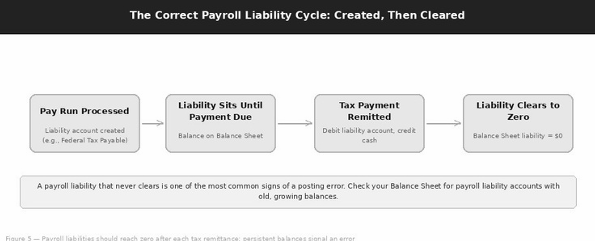
Wage expense debits and payroll tax expense debits flow to the Profit & Loss statement, reducing net income. The corresponding payroll liability credits sit on the Balance Sheet until the taxes are remitted. At that point a tax payment clears the liability (debit to the liability account) and reduces cash (credit to the bank account).
A well-functioning payroll accounting cycle means:
- The P&L shows the correct wage and tax expenses.
- The Balance Sheet shows accurate short-term payroll liabilities.
- Those liabilities clear to zero after each remittance.
Common Payroll Posting Errors and Misclassifications
Even with automation handling the mechanics, a predictable set of errors shows up in payroll accounting. Knowing what to look for makes finding and fixing them considerably faster.
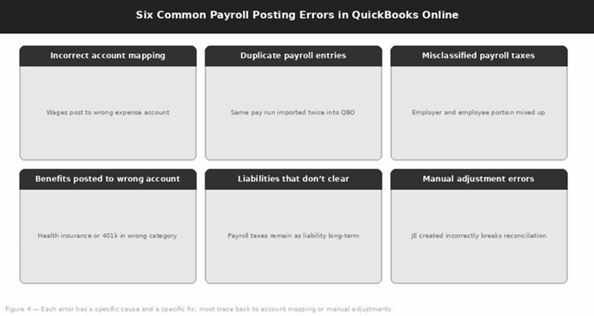
Error 1: Incorrect Payroll Account Mapping
If wages are mapped to the wrong expense account (for example, posting to “Cost of Goods Sold” instead of “Payroll Expenses”), every single pay run posts to that incorrect account. The financial statements balance, because debits still equal credits, but the P&L presents expense in the wrong category, distorting every report that depends on it. This error often goes unnoticed for months until a year-end review or a CPA catches it.
Error 2: Duplicate Payroll Entries
Duplicates happen in a few specific ways:
- A pay run is processed twice.
- A payroll journal entry is manually created to “fix” an issue while the original automatic entry still exists.
- A third-party payroll import is entered on top of QBO Payroll’s own entries.
Duplicates inflate both expense and liability accounts, making wage costs appear higher than they actually are.
Error 3: Misclassified Payroll Taxes
The employer’s portion of FICA and the employee’s withheld portion need to sit in different accounts. The employer’s FICA is an expense: the business’s own cost on top of gross wages. The employee’s withheld FICA is a liability: money collected from the employee on behalf of the government. When these are mapped to the same account or swapped, the P&L and Balance Sheet both misrepresent the real picture.
Error 4: Benefits and Deductions Posted to the Wrong Accounts
Health insurance deductions, 401(k) contributions, and other employee benefit withholdings each need their own accounts. If all deductions end up in a single “Payroll Deductions” account, you lose visibility into each benefit type, and reconciling the benefit payments to their correct liability accounts becomes unnecessarily difficult.
Error 5: Payroll Liabilities That Do Not Clear Properly
After each payroll tax remittance, the corresponding liability account should return to zero (or near zero, depending on timing). If tax remittances are posted to the wrong account, coded as an expense rather than debiting the liability account, the liability balance keeps growing even though taxes are actually being paid. This shows up as an ever-increasing payroll liability balance on the Balance Sheet that doesn’t reflect reality.
Error 6: Errors Caused by Manual Adjustments
Well-intentioned manual journal entries made to “fix” a payroll issue are one of the most common sources of secondary errors. When someone creates a manual JE to adjust a payroll balance without fully understanding the underlying accounts, they often end up creating a new problem while partially addressing the original one. Section 7 covers the correct approach to payroll corrections in detail.
Error Diagnosis Matrix
| Error | Typical Symptom | Where It Shows Up | Fix Covered In |
|---|---|---|---|
| Incorrect account mapping | Wages or taxes in an unexpected category | P&L by account | Section 7: mappings |
| Duplicate payroll entries | Wage expense higher than Payroll Summary | General Ledger | Section 7: duplicates |
| Misclassified payroll taxes | Tax expense equals withholdings, or liabilities too low | P&L and Balance Sheet | Section 7: reclassify |
| Benefits in wrong accounts | Benefit payables don’t match carrier or plan statements | Balance Sheet | Section 7: reclassify |
| Liabilities not clearing | Payroll liability balance keeps growing | Balance Sheet | Section 7: liabilities |
| Manual adjustment errors | Unexplained JEs in payroll accounts | Transaction Detail | Sections 7 and 8 |
Why This Matters
Every one of these errors leaves the books in balance, which is why they survive for months. They are found by comparing payroll records to the ledger, not by checking that the trial balance balances.
Payroll Transactions That May Still Require Manual Corrections
Even with a perfectly configured QBO Payroll setup, certain payroll situations fall outside what the automation handles cleanly and require additional attention.
Owner Compensation and Shareholder Payroll
For S corporation owners, the IRS requires that working shareholders take a reasonable salary through payroll before taking any additional distributions. QuickBooks processes the payroll mechanics correctly, but the accounting question requires a human review: is the right amount being taken as salary versus distributions, and are the equity and payroll accounts reflecting this correctly? S corp owners often need their CPA involved in setting up the appropriate compensation structure in QuickBooks to ensure the W-2 and Form 1120-S align.
Reimbursable Employee Expenses
When employees are reimbursed for out-of-pocket expenses through payroll, these reimbursements are not a wage expense. They’re simply a pass-through of costs the employee incurred on behalf of the business. If QBO is routing employee reimbursements through the standard payroll expense account, it’s inflating wage expense and understating the underlying expense categories the reimbursements actually represent.
Health Insurance Contributions
Both the employee’s pretax payroll deduction and the employer’s matching contribution need to be captured correctly. The employee portion reduces net pay and creates a liability until the premium is remitted. The employer portion is a separate benefit expense. Where this gets particularly nuanced is for S corporation owners, whose health insurance premium has specific W-2 reporting requirements that need to be coordinated between payroll setup and the tax return.
Key Rule
For a shareholder owning more than 2% of an S corporation, health insurance premiums paid by the corporation are reported as wages on the shareholder’s W-2. Coordinate this payroll setup with your CPA so the W-2, payroll records, and the corporate return agree.
Retirement Plan Contributions
Employee 401(k) deferrals are withheld from pay and must be remitted to the plan within regulatory deadlines. Employer matching contributions are a separate expense entry. If either is posted to the wrong account, especially if employer matching is missing or duplicated, the retirement plan liability account won’t reconcile to the actual plan statements.
Workers’ Compensation Adjustments
Pay-as-you-go workers’ compensation premiums are often calculated per payroll run, but they’re an insurance expense, not a payroll expense. If they’re bundled into payroll expense accounts rather than sitting in their own insurance account, your expense reporting understates insurance costs and overstates payroll costs.
Third-Party Payroll Transactions
If you use a third-party payroll processor (ADP, Gusto, Paychex) alongside or instead of QBO Payroll, you’ll typically import payroll transactions into QBO manually via journal entry or file import. This creates the highest-risk scenario for payroll accounting, because the automatic posting logic doesn’t apply. Every account assignment depends on whoever created the import template.
Accrued Payroll Adjustments
If your business uses accrual basis accounting and pay periods cross month-end, you may need to manually accrue the wage expense for the portion of the pay period that falls in the current month, then reverse that accrual when the paycheck is issued. QBO Payroll doesn’t do this automatically. It’s a journal entry that needs to be created, then reversed, for each period-end where there’s a timing mismatch.
Manual-Attention Checklist
| Transaction | Why Automation Falls Short | What to Verify |
|---|---|---|
| Owner / shareholder payroll | Salary vs. distribution is a tax judgment | Reasonable salary; equity and payroll accounts; W-2 and 1120-S align |
| Employee reimbursements | Not wages, but may route through payroll | Posted to the underlying expense categories |
| Health insurance | Employee and employer portions differ | Separate liability and expense; S corp W-2 reporting |
| 401(k) contributions | Deferrals and match post separately | Liability reconciles to plan statements; timely remittance |
| Workers’ compensation | Calculated per pay run, but insurance | Posted to an insurance expense account |
| Third-party payroll | Imported, not engine-generated | Import template matches your chart of accounts |
| Accrued payroll | QBO records on check date | Accrual entered and reversed each period-end |
Reviewing Payroll Journal Entries in QuickBooks Online
Knowing what to look for is one thing. Knowing where to look for it in QuickBooks is equally important. Here’s a structured review process for payroll accounting.
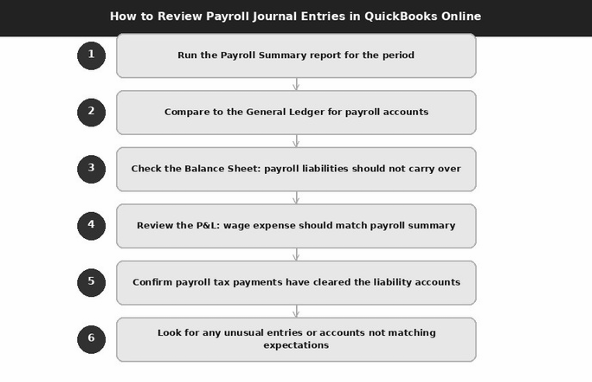
Payroll Reports
Start with the Payroll Summary report (Payroll → Reports → Payroll Summary) for the period you’re reviewing. This shows gross wages, each type of tax, deductions, and net pay by employee and in total. This is your reference document for what should have been posted to the books.
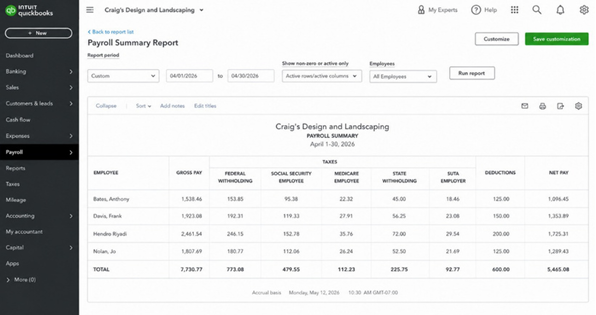
General Ledger
After running the Payroll Summary, pull the General Ledger report (Reports → Accounting → General Ledger) filtered to payroll-related accounts for the same period. You should see debits to wage expense and employer tax expense that match the payroll summary totals, and credits to the corresponding payroll liability accounts.
Transaction Detail Reports
If something in the General Ledger doesn’t match the Payroll Summary, run a Transaction Detail by Account report (Reports → Transaction Detail by Account) for the specific account where the discrepancy appears. This lets you trace the individual entry back to the specific payroll transaction or journal entry that created it.
Balance Sheet Review
At the end of each period, pull a Balance Sheet and look specifically at your payroll liability accounts. Liabilities for taxes that have already been remitted should be at or near zero. Liabilities for taxes due but not yet remitted should match what’s actually owed based on the payroll summary. A liability balance that’s growing without a corresponding remittance is a clear signal of a posting error.
Profit and Loss Review
Your P&L should show wage expense and employer tax expense that align with your headcount and pay rates. If wage expense looks unusually high or low for a period, compare it to the prior period and to the Payroll Summary to identify whether the discrepancy is a recording issue or a legitimate change.
Verifying Payroll Liabilities
In QBO, you can also run the Payroll Tax Liability report (Payroll → Taxes → Tax Liability) to see what’s owed and when. Compare this to your Balance Sheet payroll liability balances to confirm they’re consistent. Any mismatch between what QBO’s payroll system thinks is owed and what the GL shows as a liability is worth investigating immediately.
Payroll Review Report Map
| Report | Navigation in QBO | What to Check |
|---|---|---|
| Payroll Summary | Payroll → Reports → Payroll Summary | Gross wages, taxes, deductions, net pay: the benchmark |
| General Ledger | Reports → Accounting → General Ledger | Payroll account debits and credits match the summary |
| Transaction Detail by Account | Reports → Transaction Detail by Account | Trace a discrepancy to its source entry |
| Balance Sheet | Reports → Balance Sheet | Remitted liabilities at or near zero |
| Profit & Loss | Reports → Profit and Loss | Wage and tax expense consistent with headcount |
| Payroll Tax Liability | Payroll → Taxes → Tax Liability | Agrees with Balance Sheet liability balances |
Menu labels can vary slightly between QuickBooks Online versions and subscription levels; the report names remain the reliable reference point.
Fixing Incorrect Payroll Journal Entries
When a payroll error is confirmed, the correction process needs to be deliberate. Payroll accounting is more tightly regulated and more intertwined with tax filings than most other bookkeeping, which means a correction done incorrectly can create compliance problems alongside the original posting error.
Identifying Posting Issues
Before making any change, confirm exactly what’s wrong. Each type of problem requires a different fix:
| Problem Type | How to Recognize It | Correct Fix |
|---|---|---|
| Wrong account | The amount is correct but the account is wrong | Update the mapping; reclassify history |
| Duplicate entry | The same transaction is recorded twice | Delete the manual duplicate; keep the payroll-generated record |
| Amount error | The account is correct but the amount doesn’t match the Payroll Summary | Use QBO’s payroll correction or void-and-reissue process |
| Liability not clearing | The tax payment was posted to the wrong account | Re-record the payment against the liability account |
Correcting Payroll Account Mappings
If the issue is that wages or taxes have been consistently posting to the wrong account, the fix is to update the account mapping in Payroll Settings and then, if needed, reclassify historical transactions to the correct account. Updating the mapping forward prevents future recurrences; reclassifying history corrects the period-specific reports and any comparative analysis.
Adjusting Misclassified Transactions
For individual misclassified transactions (not a systemic mapping error), use the Reclassify Transactions tool (available under Accountant Tools if you have QBO Accountant access) to bulk-move transactions from the incorrect account to the correct one. For transactions in a prior period that’s already been reconciled, consult with your accountant before reclassifying, as this can reopen a reconciliation.
Handling Duplicate Entries
Once you’ve confirmed a duplicate, delete the one that shouldn’t exist, not the one that’s correctly linked to the payroll processing record. In QBO, payroll transactions created by the payroll engine have a payroll-specific transaction type that’s distinguishable from a manually created journal entry. Keep the payroll-generated transaction and remove the manual duplicate.
Resolving Uncleared Payroll Liabilities
If a payroll liability account has a balance that should have cleared after a tax remittance, the most common cause is that the tax payment was coded as an expense rather than as a debit to the liability account. The fix: void or edit the incorrectly posted payment, then re-record it as a debit to the correct liability account and a credit to cash. This simultaneously clears the liability and records the cash outflow correctly.
Example: A $1,000 Federal Tax Deposit Coded to Expense (illustrative)
| Entry | Account | Debit | Credit |
|---|---|---|---|
| As posted (incorrect) | Payroll Tax Expense | $1,000 | |
| Bank / Cash | $1,000 | ||
| As corrected | Federal Taxes Payable | $1,000 | |
| Bank / Cash | $1,000 |
Result of the Correction
Payroll tax expense is no longer overstated by $1,000, the Federal Taxes Payable balance clears to zero, and the cash outflow is unchanged. Both the P&L and the Balance Sheet now reflect reality.
Making Journal Entries Carefully
If a manual journal entry is genuinely the right tool for a correction, make sure it’s fully documented with a memo explaining what it’s correcting and why, and that it mirrors the account logic of the original transaction it’s correcting. A journal entry that doesn’t clearly trace back to a specific correction purpose becomes a source of confusion in every future review of those accounts.
Mistakes to Avoid When Correcting Payroll Entries
The correction process has its own set of common mistakes. Knowing what not to do is as important as knowing the right steps.
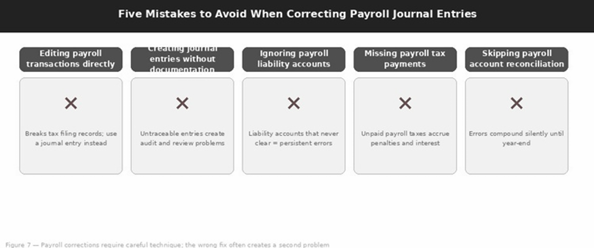
Editing Payroll Transactions Directly
In QBO, payroll transactions that were created by the payroll engine are connected to tax calculations, payroll reports, and (if applicable) e-filed tax forms. Editing these transactions directly can disconnect them from the payroll record they’re tied to, which can cause discrepancies in payroll reports and tax filings. If you need to correct a payroll transaction amount, the right path is usually through QBO’s payroll correction or void-and-reissue process, not direct editing of the underlying transaction.
Creating Unsupported Journal Entries
Journal entries that are created to move balances between accounts without a clear, documented reason are a red flag in any review or audit. Every journal entry that touches payroll accounts should have a memo explaining exactly what it’s correcting, what the original error was, and what reports were referenced in making the correction. “Payroll adjustment” is not sufficient documentation.
Example
Insufficient memo: “Payroll adjustment.”
Sufficient memo: “Reclassify Q2 employer FICA ($1,146) from Payroll Tax Payable to Payroll Tax Expense; employer share was mapped to the liability account. Ref: Payroll Summary Apr–Jun, GL detail for account 2100.” (Illustrative.)
Ignoring Payroll Liability Accounts
Payroll liability accounts are often avoided because they’re unfamiliar or intimidating. The result is that errors in these accounts compound: the balance grows, tax remittances don’t clear properly, and by year-end the liability account balance doesn’t reconcile to anything meaningful. Make payroll liability accounts part of your standard monthly review rather than something to examine only when a problem becomes visible.
Overlooking Payroll Tax Payments
Payroll tax payments need to be recorded in the books as debits to the payroll liability accounts, not as expenses. If a tax payment is coded to an expense account, it creates two problems simultaneously: the liability account doesn’t clear (the balance remains as if the tax were still owed), and the expense account is inflated by the tax payment amount. Both misrepresent the financial statements.
Failing to Reconcile Payroll Accounts
Payroll accounts, particularly the bank account used for payroll funding and the payroll liability accounts, should be reconciled monthly, not just at year-end. Waiting until December to reconcile twelve months of payroll means errors from January through November have been sitting undetected, and the correction effort is magnified by the volume of transactions involved.
Correction Do’s and Don’ts
| Avoid | Do Instead |
|---|---|
| Editing payroll-engine transactions directly | Use QBO’s payroll correction or void-and-reissue process |
| Journal entries with no explanation | Write a memo: what is corrected, the original error, the reports used |
| Leaving payroll liability accounts unreviewed | Review every liability account monthly |
| Coding tax payments to expense accounts | Debit the payroll liability account, credit cash |
| Reconciling payroll only at year-end | Reconcile payroll bank and liability accounts monthly |
Best Practices for Maintaining Accurate Payroll Accounting
The businesses that maintain clean payroll accounting over time aren’t doing anything extraordinary. They’ve built a consistent routine that catches small issues before they become large ones.
Reviewing Payroll Settings Regularly
Payroll account mappings should be reviewed at least annually, and any time there’s a change in chart of accounts structure, a new type of compensation or benefit is added, or a new employee type is set up. A mapping that was correct when it was created may not be correct after an accounts restructuring.
Reconciling Payroll Accounts Monthly
- Bank account reconciliation: confirm that each payroll deposit, tax remittance, and direct deposit batch matches the payroll reports for that period.
- Payroll liability reconciliation: confirm that each liability account reflects only amounts currently owed, not accumulated balances from prior periods.
- P&L review: compare wage expense and payroll tax expense to prior periods and to headcount to confirm they’re in an expected range.
Monitoring Payroll Liabilities
Keep an eye on your payroll liability account balances specifically at period-end. A federal income tax payable balance should roughly equal the withholdings from the most recent pay period(s) that haven’t yet been remitted. A balance significantly higher than that suggests either that a remittance didn’t post correctly or that historical withholdings weren’t properly cleared.
Keeping Supporting Payroll Reports
For every pay period, retain the Payroll Summary report and the corresponding payroll journal entry in your records. When a question comes up in a future review or audit, having these documents organized by period makes the investigation far faster. Store them in whatever document management system your business uses, linked or filed by the corresponding pay date.
Coordinating Payroll and Bookkeeping Processes
In many businesses, payroll is handled by one person and bookkeeping by another. When they’re not communicating, payroll transactions can enter the books incorrectly and stay that way because neither person has visibility into the other’s work. Building a brief monthly handoff, even just a shared payroll summary and a confirmation that the GL entries look right, prevents this coordination gap from becoming an ongoing source of errors.
Payroll Accounting Review Calendar
| Frequency | Task |
|---|---|
| Every pay period | Run the Payroll Summary; compare to the General Ledger; file the report with the pay-date records |
| Monthly | Reconcile the payroll bank account and payroll liability accounts; review the P&L; payroll-to-bookkeeping handoff |
| After each tax remittance | Confirm the related liability account cleared |
| Annually, and at every change | Review payroll account mappings against the chart of accounts |
| Year-end | Tie W-2 totals to payroll records; clean up payroll liabilities before closing the books |
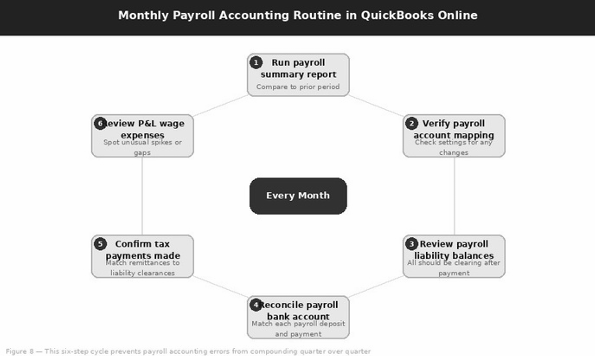
Monthly Payroll Accounting Routine
- Run the payroll summary report and compare it to the prior period
- Verify payroll account mapping; check settings for any changes
- Review payroll liability balances
- Reconcile the payroll bank account; match each payroll deposit and payment
- Confirm tax payments were made and match remittances to liability clearances
- Review P&L wage expenses; spot unusual spikes or gaps
When Professional Assistance May Be Necessary
Payroll accounting is one of the areas where professional help pays for itself most clearly, both in terms of the errors it prevents and the time it saves.
Persistent Payroll Discrepancies
If your payroll liability accounts never fully reconcile, if you consistently find unexplained differences between the Payroll Summary and the General Ledger, or if payroll entries seem right but your P&L wage expense doesn’t match expectations, those are signals that the underlying account structure or mapping has a systemic problem that’s worth getting a specialist to diagnose.
Multi-State Payroll Complexities
If you have employees in multiple states, payroll accounting becomes significantly more complex: different state income tax withholding liability accounts, SUTA taxes by state, and potentially different wage base rules. Getting the account structure right for multi-state payroll, and keeping it clean as employees move or as the business expands into new states, is something most businesses benefit from professional guidance on.
Large Payroll Liability Balances
A payroll liability balance that’s significantly larger than what’s currently owed (particularly for federal or state taxes) should be investigated and corrected before it creates a compliance problem. In some cases, large payroll liability balances represent actual underpaid taxes that need to be addressed with the relevant tax authority, not just a bookkeeping correction.
Historical Payroll Corrections
If payroll accounting errors stretch back multiple years and prior tax returns have been filed during that period, corrections need to be approached carefully. The bookkeeping correction and the tax correction may not be the same entry, and changes that affect already-filed W-2s or payroll tax returns require amended filings. A CPA or payroll specialist should be involved before making changes that could affect prior-period filings.
Year-End Payroll Cleanup and Reporting
Year-end is when payroll accounting errors become most visible, because W-2 totals need to reconcile to payroll records, and payroll tax liabilities need to be cleaned up before the books close. If significant clean-up is needed at year-end, it’s worth using that experience as the impetus to build a quarterly review process that prevents the same situation next year.
When Professional Help Is Worthwhile
| Situation | Why Professional Help Is Worthwhile |
|---|---|
| Payroll liability won’t reconcile | Systematically tracing the error requires payroll accounting expertise |
| Multi-state employee added | Account structure and withholding setup need to be correct from the first paycheck |
| S corp owner compensation questions | Reasonable salary determination and W-2/distribution split require CPA input |
| Third-party payroll import setup | The import template needs to match your QBO chart of accounts precisely |
| Year-end W-2 totals don’t match books | W-2 corrections and amended filings need qualified preparation |
Thinking about a payroll accounting review?
If you’re not confident that your payroll journal entries are posting correctly in QuickBooks, a focused review of your payroll account mapping and a comparison of recent payroll summaries to the General Ledger will usually identify the issue quickly. We’re happy to take a look.
Reference
Frequently Asked Questions
Yes. When you run payroll in QBO, the system creates the underlying accounting automatically based on your payroll settings and account mappings: wage expense, employer payroll tax expense, employee withholding liabilities, employer tax liabilities, benefit payables, and the net-pay cash outflow. You don’t construct the entry manually each pay period, but you still need to confirm the mappings are correct.
Because balance only proves that debits equal credits. If wages are mapped to Cost of Goods Sold instead of Payroll Expenses, or employer FICA is mapped to a liability account, the entry balances perfectly while posting to the wrong account every pay run.
The most common cause is that payroll tax payments were coded to an expense account instead of debiting the payroll liability account. Other causes include duplicate payroll entries, third-party imports layered on top of QBO Payroll, and unsupported manual journal entries. Compare the Payroll Tax Liability report with the Balance Sheet to locate the difference.
Start with the Payroll Summary as the benchmark, then compare it to the General Ledger for payroll accounts. Use Transaction Detail by Account to trace discrepancies, the Balance Sheet to check liability balances, the P&L to sanity-check wage expense, and the Payroll Tax Liability report to confirm what is owed.
It is not recommended. Payroll-engine transactions are connected to tax calculations, payroll reports, and e-filed forms. Editing them directly can disconnect them from the payroll record. Use QBO’s payroll correction or void-and-reissue process instead.
Keep the payroll-generated transaction, which has a payroll-specific transaction type, and delete the manually created duplicate. Never delete the entry that is correctly linked to the payroll processing record.
No. QBO Payroll records payroll on the check date by default. Accrual-basis businesses whose pay periods cross month-end need to accrue earned-but-unpaid wages with a journal entry and reverse it when the paycheck is issued.
No. Reimbursements are a pass-through of costs the employee incurred on behalf of the business. Routing them through payroll expense inflates wages and understates the underlying expense categories.
Usually through a journal entry or file import. Because QBO’s automatic posting logic does not apply, every account assignment depends on the import template, which must match your QBO chart of accounts precisely.
At least annually, and whenever the chart of accounts is restructured, a new type of compensation or benefit is added, or a new employee type is set up.
Summary
Key Takeaways
QBO Payroll creates the journal entry for every pay run automatically, but that entry is only as accurate as the account mapping, benefit setup, and tax payment coding behind it.
A payroll entry that balances is not necessarily correct. Accuracy depends on the mapping, not on the math.
Employer FICA is an expense; employee FICA withheld is a liability. Keep the two in separate accounts.
Payroll liabilities should clear to zero after each remittance. A growing balance usually means tax payments were coded to expense instead of the liability account.
Owner payroll, health insurance, 401(k), reimbursements, workers’ compensation, third-party imports, and accruals still need manual review.
QBO records payroll on the check date, so accrual-basis businesses need to accrue earned-but-unpaid wages and reverse the entry the next period.
Use the right correction tool, never edit payroll-engine transactions directly, and document every payroll journal entry with a specific memo.
A 15–20 minute review after every pay period, comparing the Payroll Summary to the General Ledger, catches most errors before they compound.
Final Thoughts
Conclusion
Why Automated Doesn’t Mean Hands-Off
QuickBooks Online Payroll handles a significant amount of payroll accounting correctly and automatically. But that automation is only as reliable as the account mappings behind it, and several common payroll situations (owner compensation, benefit contributions, third-party imports, accruals) fall outside what the automation handles cleanly.
The businesses with reliable payroll accounting aren’t the ones that trust automation blindly. They’re the ones that built a monthly review habit: compare the Payroll Summary to the General Ledger, confirm payroll liabilities are clearing, check that the P&L wage expense makes sense. That process, done consistently, catches most errors before they compound into something much harder to fix.
Payroll errors that get into tax filings, such as incorrect W-2s, unremitted taxes, or misclassified S corp compensation, are the ones that have real consequences. The goal of the review process described in this guide is to ensure those errors never reach the tax filing stage.
Resources