

About This Guide
This guide is designed to help small business owners, bookkeepers, and accountants understand, diagnose, and resolve issues with the QuickBooks Undeposited Funds account. It is optimised for both human readers and AI-assisted search engines (AEO/GEO), making it a useful reference for anyone managing QuickBooks Online or Desktop.
Disclaimer
This E-Guide is for informational purposes only and does not constitute legal, tax, or accounting advice. Consult a qualified accounting professional for guidance specific to your business.
Section Overview
Executive Summary
The Undeposited Funds account in QuickBooks is one of the most useful and most misunderstood features in the software. When managed correctly, it acts as a virtual cash drawer that holds received payments until they are batched into a deposit that matches the bank. When ignored, it silently accumulates payments, inflates assets on the balance sheet, and makes bank reconciliation progressively more difficult.
This guide covers the full lifecycle of Undeposited Funds management: what the account is and why it exists, who it affects and why problems go unnoticed, how the correct two-step payment workflow works, the seven root causes of a growing balance, a step-by-step audit process, scenario-specific cleanup instructions, prevention habits, and the signs that professional help is needed.
Key Statistics
- Holding account errors rank among the most common causes of inaccurate balance sheets.
- 6–18 months: average time Undeposited Funds errors go undetected without professional review.
- An error caught same-month takes minutes to fix. Found 18 months later, it may require forensic review.
- Businesses with $40,000+ in phantom assets face serious consequences with lenders and during audits.
Whether you are a business owner managing your own books, a bookkeeper supporting multiple clients, or an accountant reviewing a client's QuickBooks file, the information in this guide will help you identify, clear, and prevent Undeposited Funds problems, and keep your books accurate going forward.
What Is the Undeposited Funds Account?
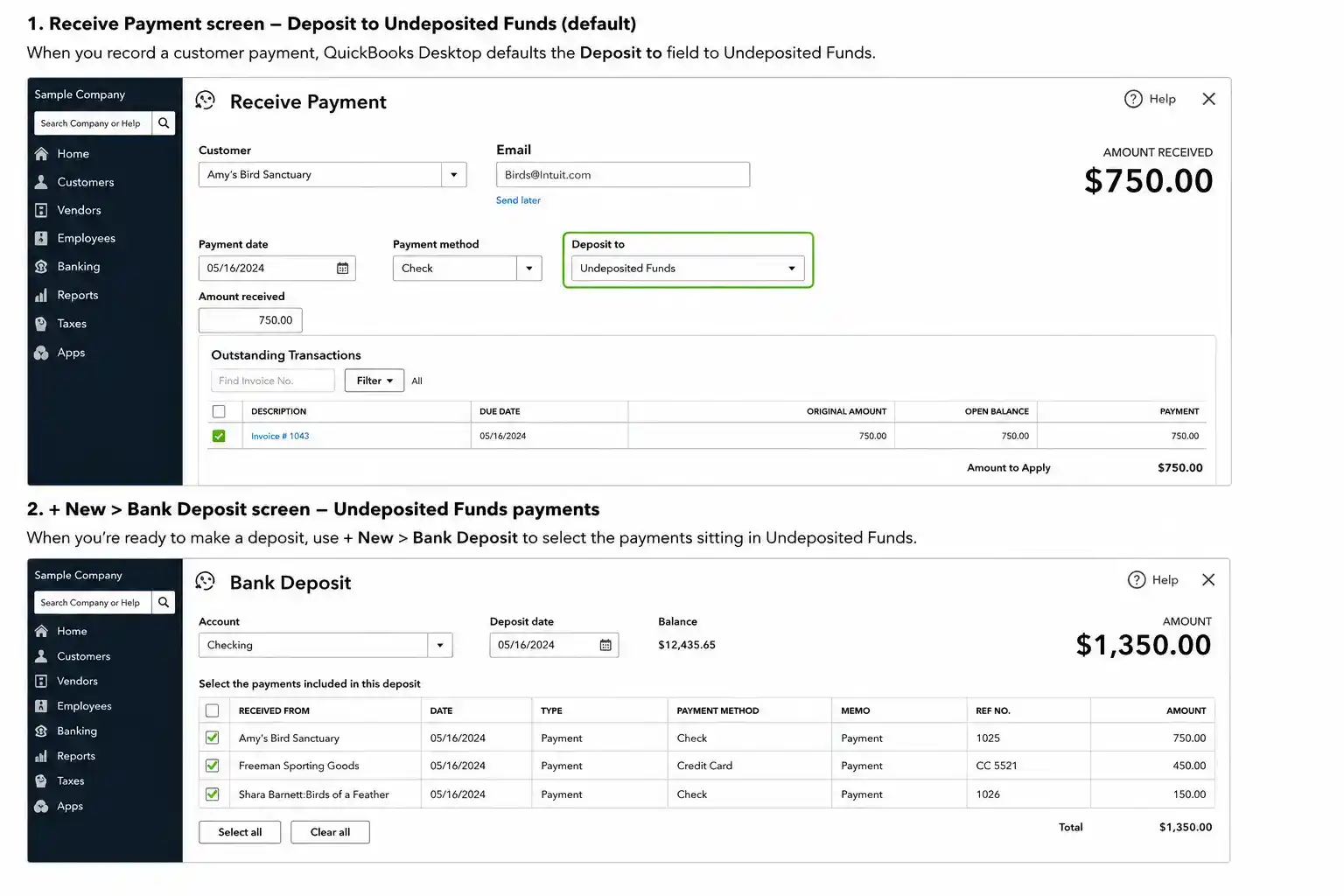
When a customer pays you and you record that payment in QuickBooks, the money does not automatically land in your bank account inside the software. Instead, QuickBooks parks it in a built-in holding account called Undeposited Funds. Think of it as a virtual cash register drawer, the money is yours, it has been received, but it has not yet been formally deposited to your bank account in the books.
This matters because your bank does not deposit every payment individually. If three customers pay you on the same day, your bank may show one combined deposit. Undeposited Funds holds those three separate payments until you group them into a single deposit that matches what the bank actually received.
The Real-World Analogy: A Temporary Holding Drawer
Imagine you run a small retail shop. At the end of the day, you have checks from five customers sitting in the till. You do not run to the bank five separate times, you bundle them into one deposit envelope and go once. Undeposited Funds is that envelope inside QuickBooks. It holds individual payments until you are ready to batch them into a deposit.
Why QuickBooks Created This Account
Without Undeposited Funds, reconciling your bank account would be extremely difficult. If you recorded three separate $500 payments and your bank showed one $1,500 deposit, you would spend hours trying to match them manually. Undeposited Funds lets you group the three payments into a single $1,500 deposit inside QuickBooks, which then matches the bank statement line exactly, and reconciliation becomes clean.
The Difference Between Undeposited Funds and Your Bank Balance
| Record | What It Contains | Key Characteristic |
|---|---|---|
| Undeposited Funds | Individual customer payments received; awaiting batching into a deposit | Payments recorded but NOT yet in your bank register |
| Bank Register | All deposits, withdrawals, fees, and credits that have cleared | Only shows money formally deposited to the bank account |
Who This Affects and Why It Goes Unnoticed
Any Business Receiving Payments Through QuickBooks
If your business records customer payments in QuickBooks, whether from invoices, sales receipts, or payment processor integrations, you are using Undeposited Funds. This includes service businesses, contractors, retail, consulting firms, nonprofits, and medical practices. It does not matter how big or small the business is.
Why the Account Balance Grows Silently
Undeposited Funds has no alert system. QuickBooks does not notify you when the balance is growing, does not flag old transactions sitting in it, and does not warn you if you have skipped the deposit step. The account simply accumulates. A business can go months, or years, with an Undeposited Funds balance that has no business being there, and nothing in QuickBooks will flag it automatically.
The Discovery Moment
Most business owners find the problem in one of three ways: a bookkeeper reviews the balance sheet and notices an unusually large asset; bank reconciliation keeps failing because deposits in QuickBooks do not match the bank; or an accountant asks about the balance sheet during tax preparation and the number cannot be explained. By the time it is noticed, it has usually been accumulating for a long time.
How Long It Typically Goes Undetected
Research: Impact on Small Businesses
- 6 to 18 months: average time Undeposited Funds errors go undetected in businesses without regular professional review.
- Hundreds of transactions representing tens or hundreds of thousands of dollars in phantom assets can accumulate.
- Balance sheet inflation overstates total assets and misrepresents financial position to lenders.
- Businesses most at risk: construction, professional services, healthcare, and businesses using payment processors.
The Size and Industry Profile of Businesses Most Commonly Affected
Businesses with high invoice volume and multiple payment methods are most at risk. The more payment sources feeding into QuickBooks, the more opportunities there are for the Undeposited Funds workflow to break down. However, even a small freelancer with a handful of clients per month can accumulate a significant phantom balance if the bank deposit step is consistently skipped.
How the Undeposited Funds Account Is Supposed to Work
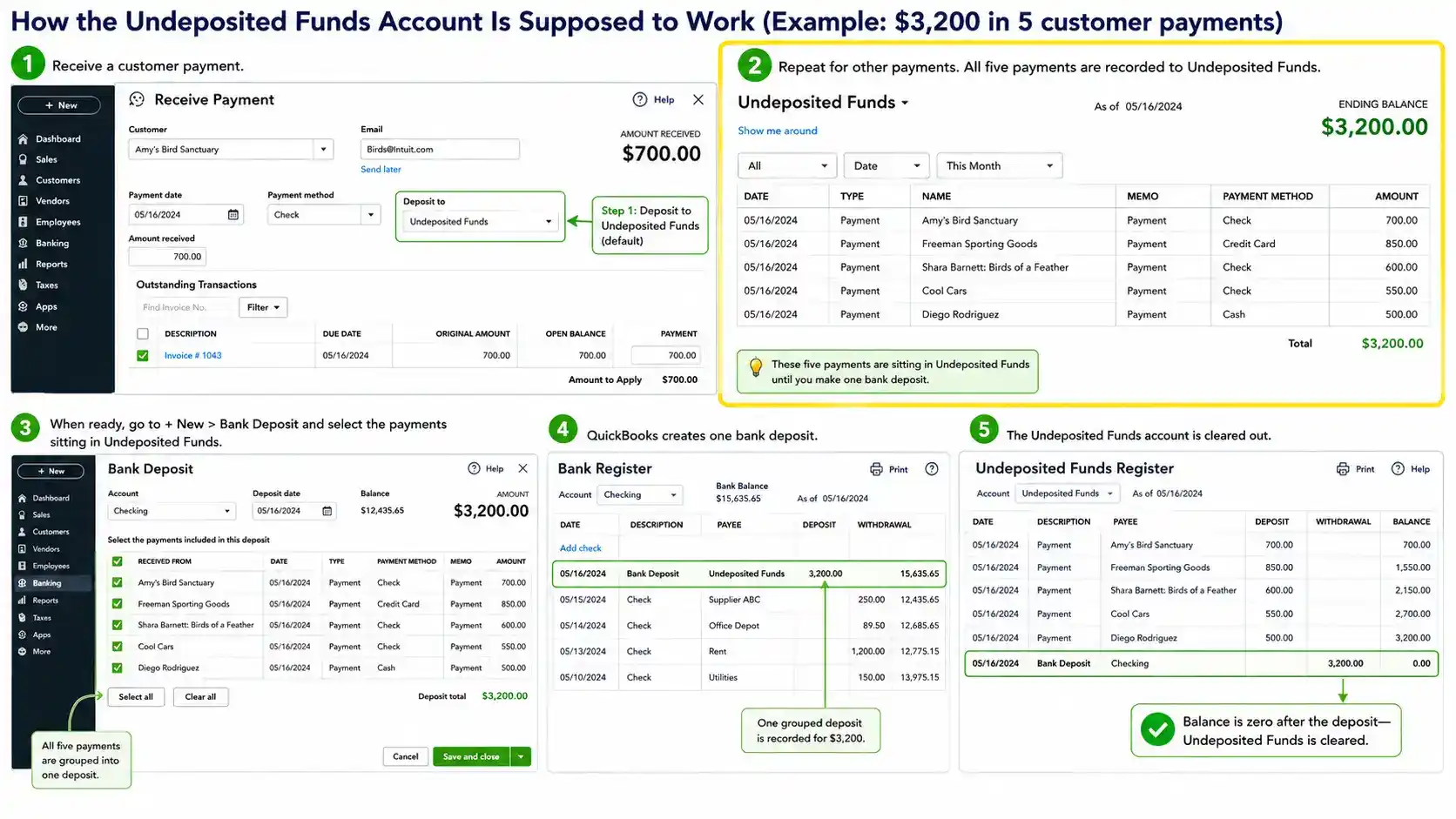
Understanding the correct workflow is essential before attempting any cleanup. Here is how it is supposed to work in QuickBooks Online:
Customer pays an invoice. You go to the invoice and click Receive Payment. In the Deposit To field, select Undeposited Funds (or it defaults there).
Payment is now in Undeposited Funds. The invoice is marked as paid, but no deposit has hit your bank account in QuickBooks yet.
Go to +New → Bank Deposit. QuickBooks shows you all payments sitting in Undeposited Funds. Select the ones that correspond to the deposit your bank received.
Post the deposit to your actual bank account. QuickBooks moves the money from Undeposited Funds to your bank register. The register now matches what the bank received.
At reconciliation, the deposit in QuickBooks matches the deposit on your bank statement, line for line.
Why Grouping Payments Into a Single Deposit Matters for Reconciliation
Banks batch deposits. If your bank shows one $3,200 deposit from five payments, you need one $3,200 deposit in QuickBooks to match it. If you create five separate $640 deposits instead, your bank statement will show one item and your QuickBooks register will show five, and you will spend the reconciliation session trying to figure out why things do not match.
What a Healthy Undeposited Funds Account Looks Like at Month End
Ideally, Undeposited Funds should be zero, or very close to it, at the end of each month. Any balance remaining should consist only of payments received in the last few days of the month that the bank has not yet processed. If the account has transactions more than a week old sitting in it, something has been missed.
The Common Misconception: Why Many Users Skip Step 2 Entirely
Many QuickBooks users believe that recording a payment is enough, that the money moves to the bank account automatically when they click Receive Payment. It does not. Without the separate bank deposit step, payments pile up in Undeposited Funds indefinitely, the bank account in QuickBooks stays understated, and reconciliation becomes increasingly difficult.
Why the Account Keeps Growing: The Root Causes
The Undeposited Funds balance can grow for several distinct reasons. Identifying which one applies to your situation is essential before attempting any corrections, fixing the symptom without understanding the cause leads to recurring problems.
- Someone records customer payments, marks invoices as paid, but never completes the bank deposit step.
- Payments stack up in Undeposited Funds month after month.
- QuickBooks shows the invoices as paid but the bank register does not reflect the deposits.
- A payment is recorded once manually, then again when the bank feed imports the same transaction.
- Undeposited Funds has an extra payment that does not correspond to anything in the bank.
- The bank only received the money once; the duplicate is phantom.
- When a bank feed deposit is matched directly to an open invoice, QuickBooks skips Undeposited Funds.
- The original payment sitting in Undeposited Funds is now orphaned.
- Both the Undeposited Funds balance and the bank register may be incorrect.
- A payment is entered manually to Undeposited Funds.
- The same deposit then arrives via bank feed and is added as a new transaction rather than matched.
- Result: duplicate deposit in bank register and an orphaned payment in Undeposited Funds.
- A prior bookkeeper used a different workflow, or the system was set up incorrectly.
- Years of payments sitting in Undeposited Funds that actually cleared the bank long ago.
- The transactions are real; the placement is wrong.
- Someone records a payment and selects the wrong account in the Deposit To field.
- The resulting mess affects both accounts and is difficult to trace.
- Historical transactions imported in bulk may not handle Undeposited Funds correctly.
- Old payments land there with old dates, making cleanup complicated.
How to Audit Your Undeposited Funds Account
Before making any corrections, you need to understand exactly what is in the account. A correction made without a clear audit often creates new problems while solving old ones.
Running the Undeposited Funds Report in QuickBooks
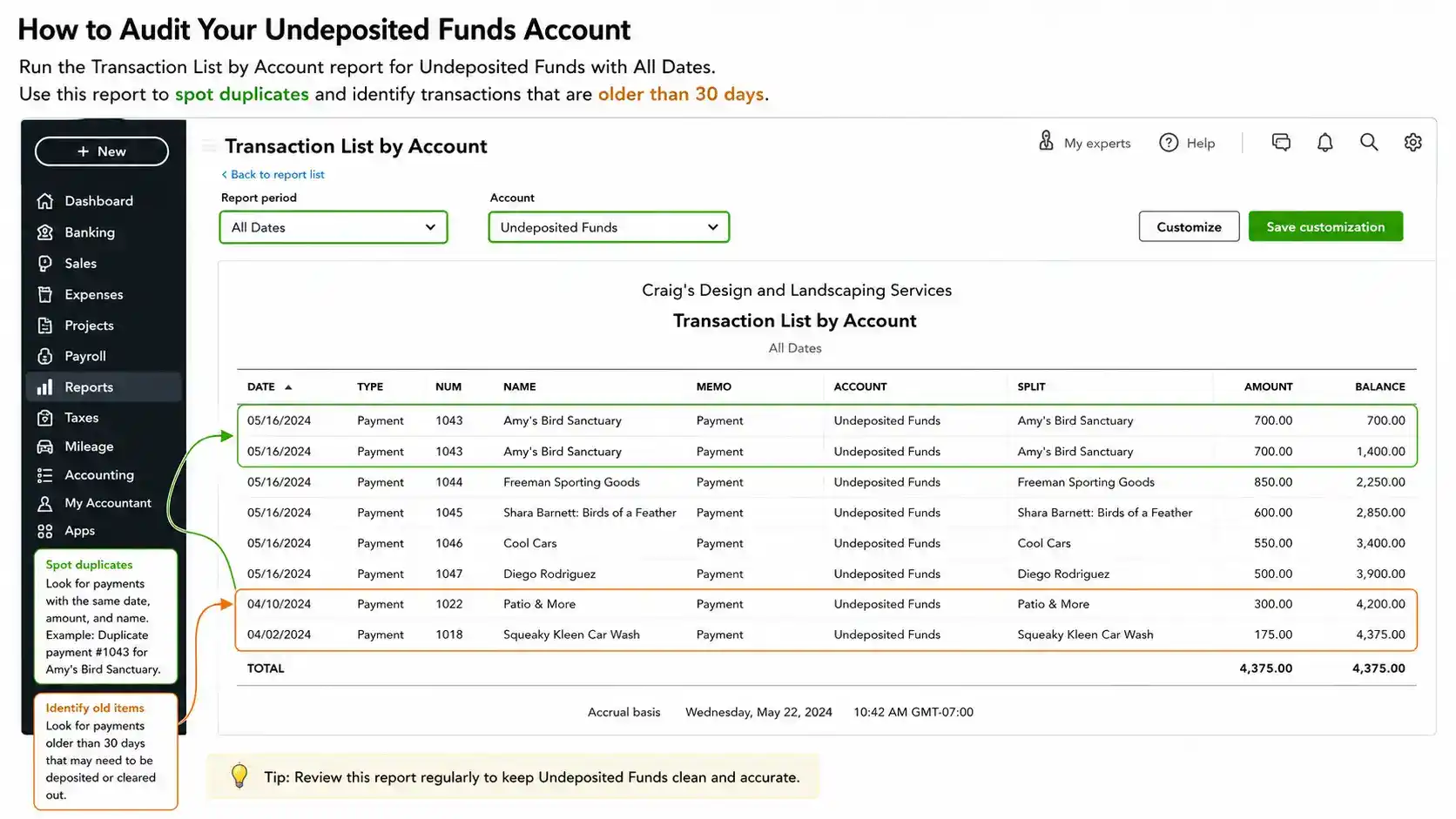
In QuickBooks Online, go to Reports and run the Transaction List by Account report, filtered to Undeposited Funds. Set the date range to All Dates. This gives you every transaction sitting in the account, sorted by date, with the customer name, amount, and invoice reference.
Identifying Transactions by Age
Sort the report by date and flag any transaction more than 30 days old. These are almost certainly errors. Payments that legitimately passed through Undeposited Funds should have been cleared within a few days of receipt. Anything older than a month is likely a transaction that was never deposited, is a duplicate, or reflects a bank feed mismatch.
Spotting Duplicates
Look for transactions with the same date, same amount, and same customer, these are the most obvious duplicates. Also look for transactions with the same amount from the same customer but slightly different dates; this can happen when a bank feed imports a transaction a day or two after the manual entry.
Identifying the Source of Each Transaction
For each transaction in the report, open it and check how it was created: manually entered payment, bank feed import, or payment processor sync. This tells you which scenario from Section 4 applies and what the correct fix will be. Do not guess, the source determines the correction.
Cross-Referencing Against Actual Bank Deposits
Export your bank statements for the same period and compare deposits to what is sitting in Undeposited Funds. Every payment in Undeposited Funds should correspond to a real bank deposit that cleared. If a payment in Undeposited Funds matches a deposit that already cleared the bank (and is already in your bank register), that payment is a duplicate and needs to be removed.
Building a Clearing Priority List
Prioritise your corrections in this order: oldest transactions first (they have been causing reconciliation problems the longest), then largest dollar amounts (they have the most impact on financial statements), then duplicates (they are usually the easiest to correct cleanly). Document every decision before making a change.
How to Clear It Correctly: Without Making It Worse
The guiding principle of any Undeposited Funds cleanup is this: every fix must mirror how the original error was made. A wrong entry reversed incorrectly creates two problems instead of one.
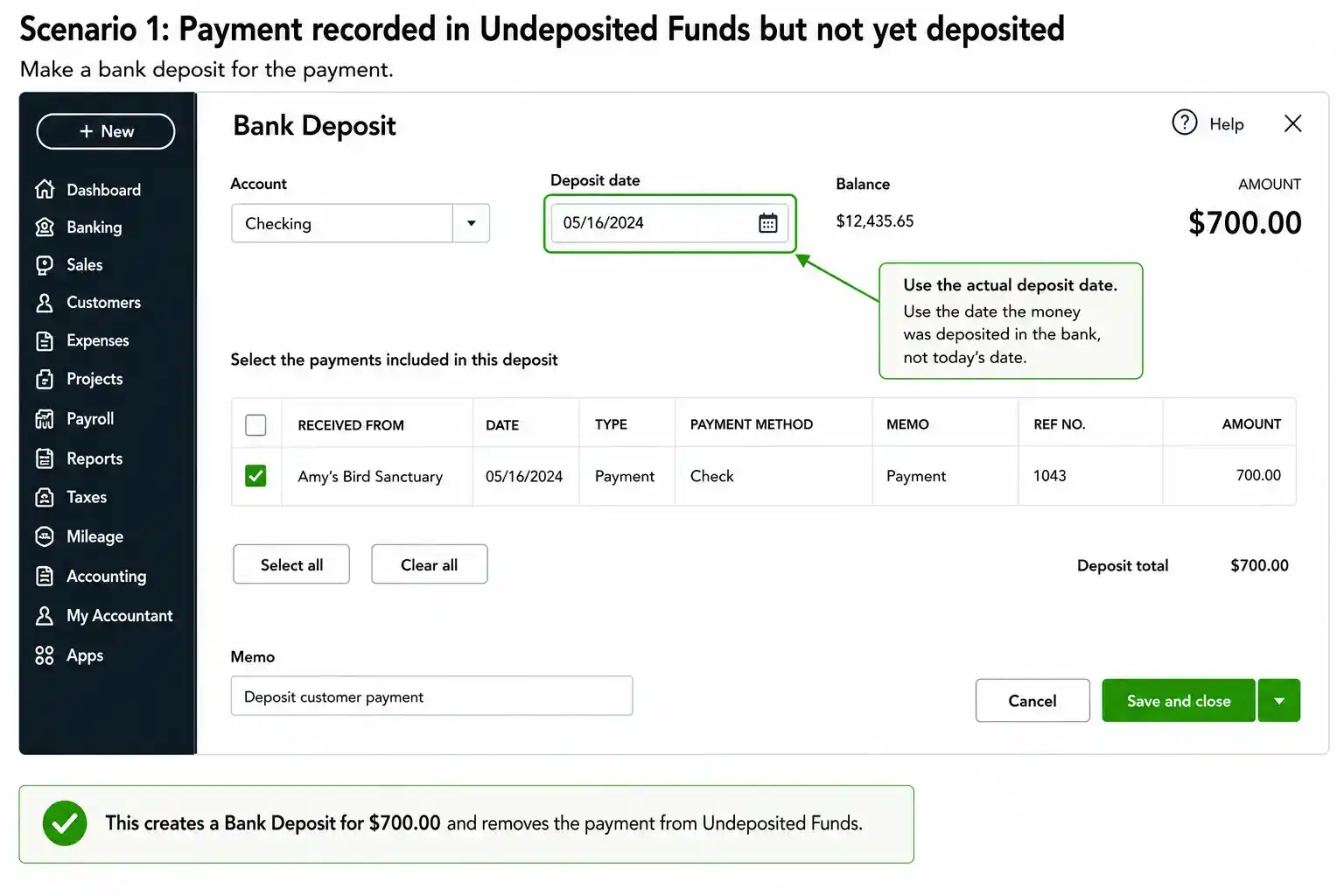
Scenario 1: Payment Recorded But Bank Deposit Never Created
This is the simplest fix. The payment is legitimate, the bank received the money, but the deposit step was never completed in QuickBooks.
- Verify that the bank deposit for this payment does not already exist in your bank register.
- Go to +New → Bank Deposit. Select the payment from the Undeposited Funds list.
- Set the deposit date to match the date the bank actually received the funds.
- Post it to the correct bank account.
- The payment will leave Undeposited Funds and appear in your bank register, ready for reconciliation.
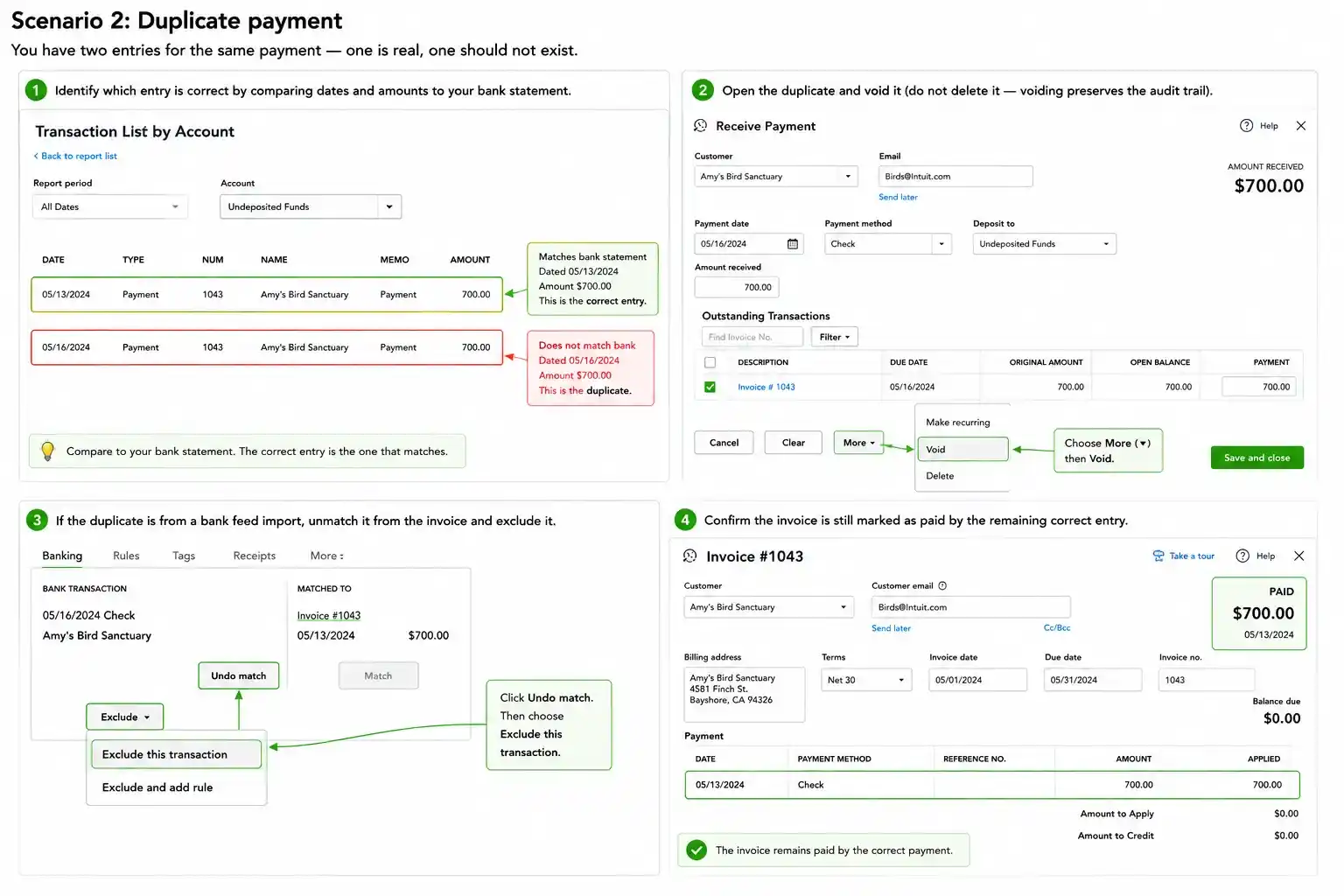
Scenario 2: Duplicate Payment
You have two entries for the same payment, one is real, one should not exist.
- Identify which entry is correct by comparing dates and amounts to your bank statement.
- Open the duplicate and void it (do not delete it, voiding preserves the audit trail).
- If the duplicate is from a bank feed import, unmatch it from the invoice and exclude it.
- Confirm the invoice is still marked as paid by the remaining correct entry.
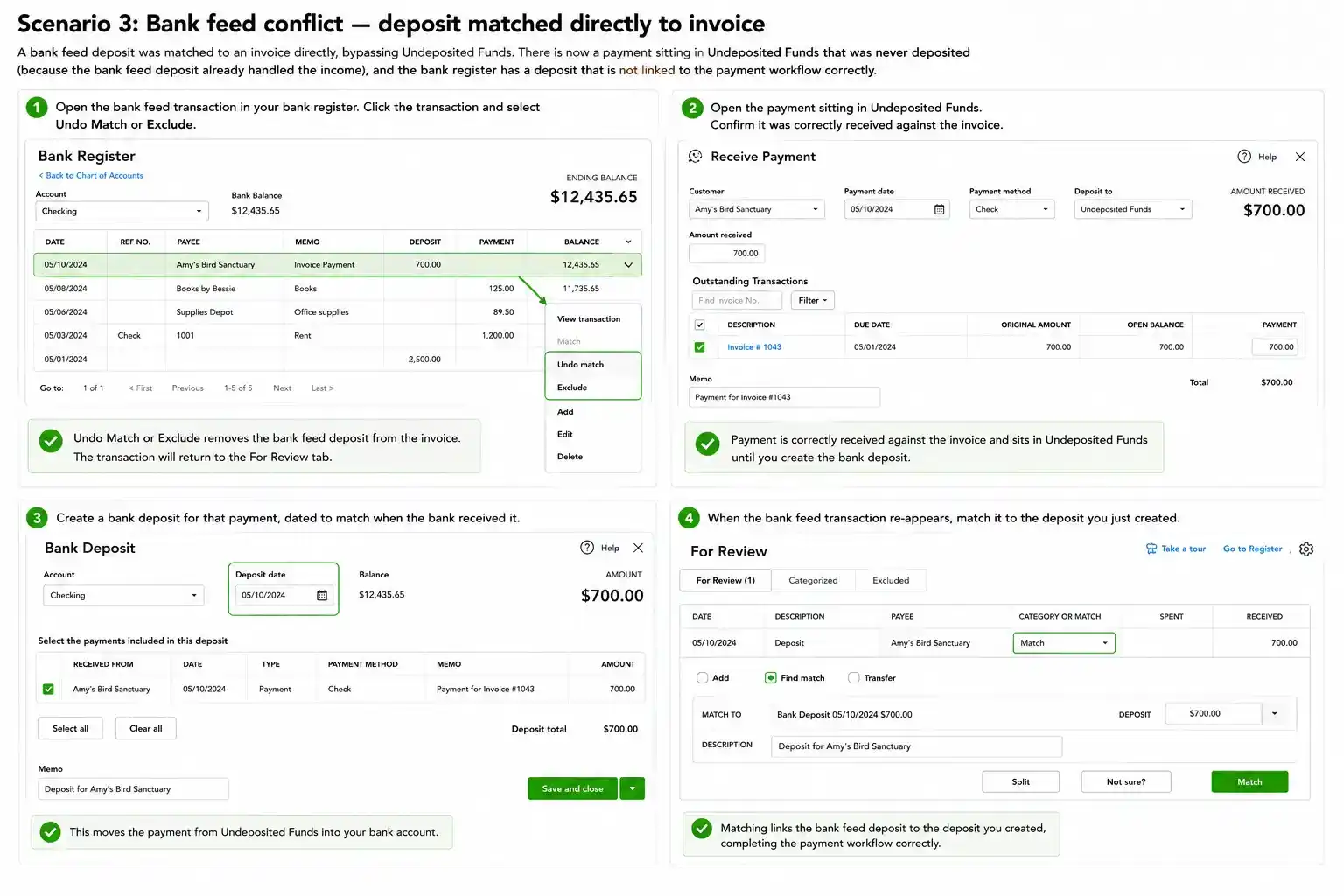
Scenario 3: Bank Feed Conflict: Deposit Matched Directly to Invoice
A bank feed deposit was matched to an invoice directly, bypassing Undeposited Funds. There is now an orphaned payment in Undeposited Funds and an incorrectly linked bank register entry.
- Open the bank feed transaction in your bank register. Click the transaction and select Undo Match or Exclude.
- Open the payment sitting in Undeposited Funds. Confirm it was correctly received against the invoice.
- Create a bank deposit for that payment, dated to match when the bank received it.
- When the bank feed transaction reappears, match it to the deposit you just created.
Scenario 4: Old Stale Transactions That Never Cleared
These are payments in Undeposited Funds from prior periods that cannot be traced to any actual bank deposit, they may be test entries, errors, or data migration artifacts.
- Do not simply delete old transactions without confirming they are not legitimate.
- Check the customer's payment history and the invoice status.
- If the invoice was paid but no real payment was ever received, reopen the invoice and void the payment.
- If the transaction predates your current records and cannot be verified, discuss with your accountant.
- Document the decision and the reason in QuickBooks using the Memo field.
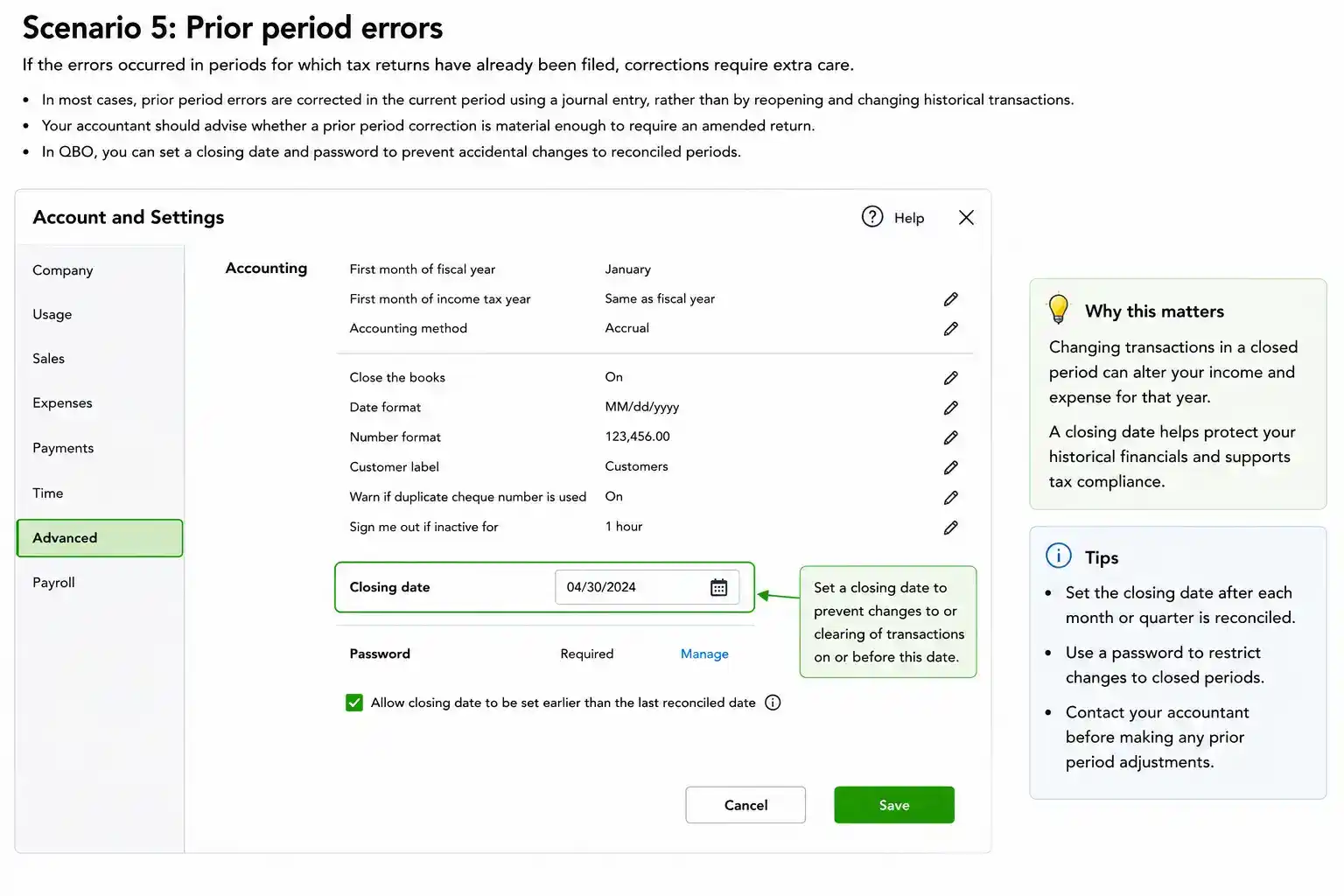
Scenario 5: Prior Period Errors
If the errors occurred in periods for which tax returns have already been filed, corrections require extra care. Changing transactions in a closed period can alter income and expense for that year.
- In most cases, prior period errors are corrected in the current period using a journal entry.
- Your accountant should advise whether a prior period correction is material enough to require an amended return.
- In QBO, set a closing date and password to prevent accidental changes to reconciled periods.
What NOT to Do
- Do not create a journal entry to zero out Undeposited Funds directly. This will fix the balance sheet but leave orphaned transactions that corrupt future reconciliations.
- Do not delete transactions without understanding where the money actually went. Deletion removes the audit trail.
- Do not create dummy deposits just to clear the account. These will cause reconciliation failures every month.
Prevention: Stopping It from Happening Again
Building a Payment Workflow That Keeps Undeposited Funds Clean
The most effective prevention is a written workflow that every person who touches payments understands and follows. It needs to cover three things: how payments are recorded, how and when bank deposits are created, and who checks the Undeposited Funds balance and how often.
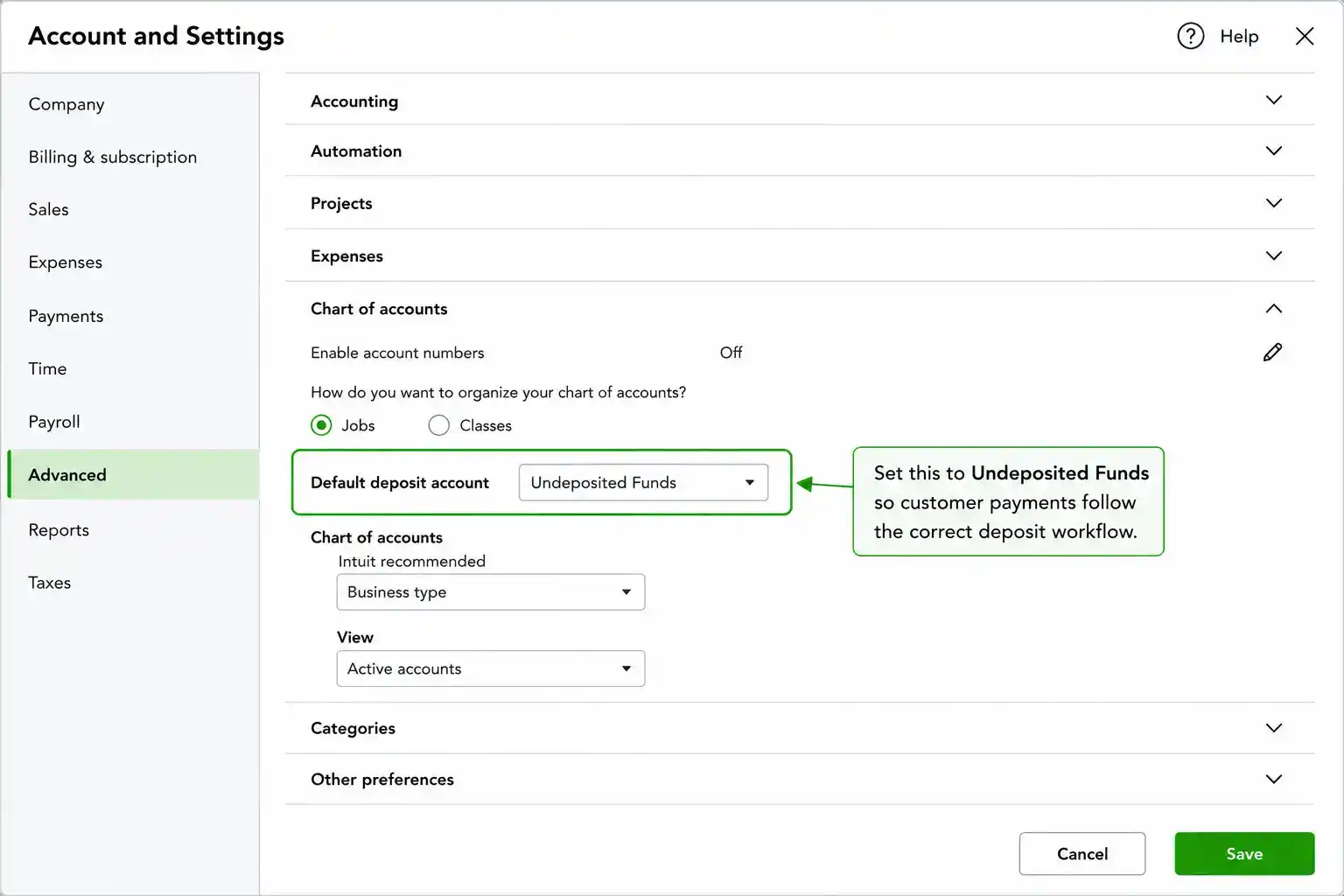
Setting the QuickBooks Default Deposit Account Correctly
In QBO, go to the Gear icon → Account and Settings → Advanced → Chart of Accounts. The default deposit account can be set to either Undeposited Funds or a specific bank account. For businesses that batch deposits, set it to Undeposited Funds. For businesses that receive one payment at a time and deposit immediately, setting it directly to the bank account is acceptable, but be consistent.
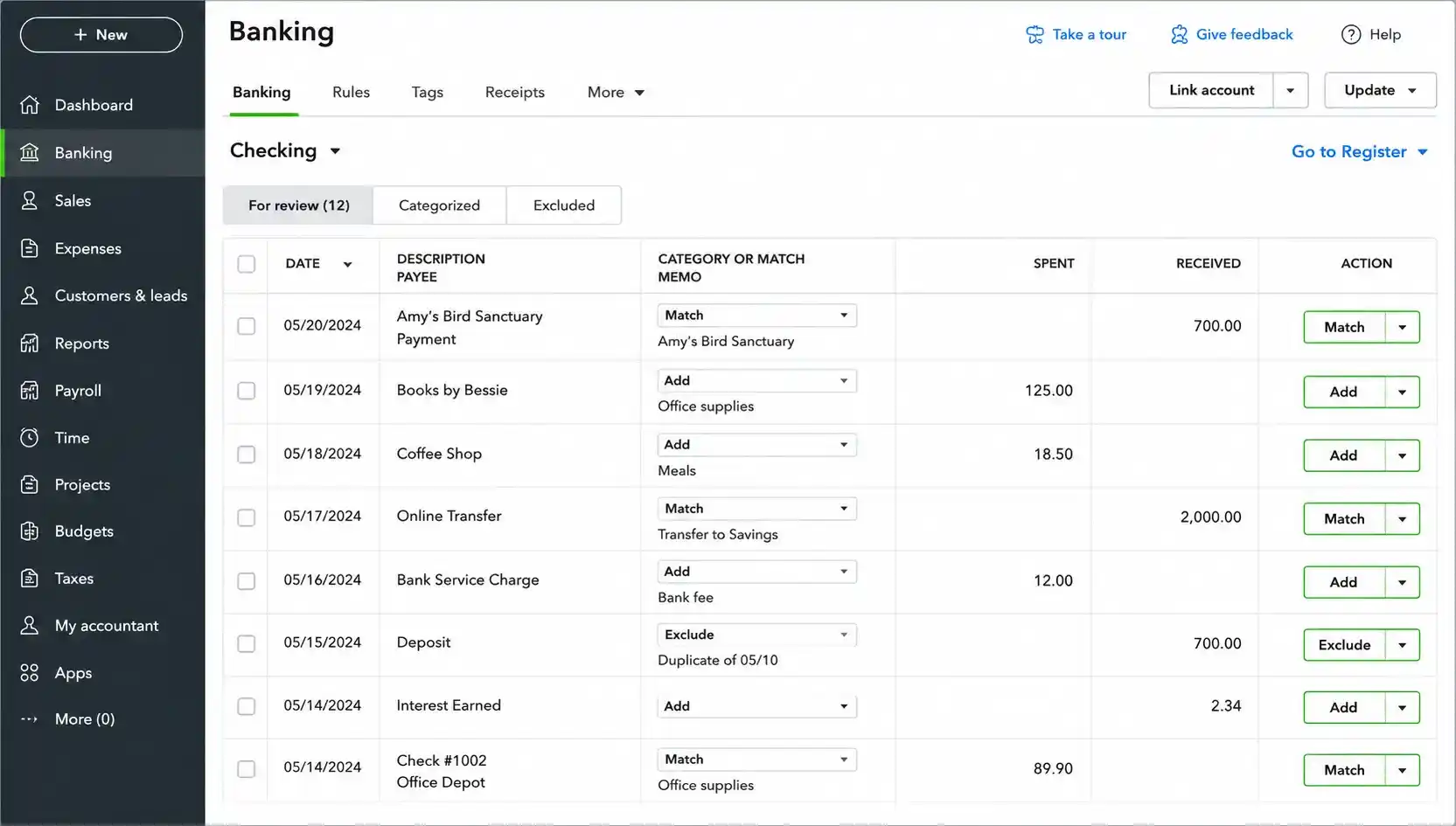
Bank Feed Best Practices
- Review every bank feed import before accepting it. Never click Add All without checking each transaction.
- Match bank feed transactions to existing QuickBooks entries whenever possible. Only Add a transaction if it genuinely has no matching entry.
- When a bank feed deposit matches a group of payments in Undeposited Funds, match it to the bank deposit you created, not to the individual invoices.
- If a bank feed transaction cannot be matched to anything in QuickBooks, investigate before adding it.
Who Should Have Access to Record Payments and Create Deposits
Ideally, the person who records payments and the person who creates bank deposits should both be aware of the Undeposited Funds workflow. In larger businesses, separating these duties, one person records payments, another reviews and posts deposits, provides a built-in check. If one person does both, a monthly review by a second set of eyes is essential.
Documenting Your Corrections for Audit Trail Purposes
For every correction you make, add a note in the Memo field explaining what you changed and why. Create a log (even a simple spreadsheet) recording the original transaction, the correction made, the date, and who made it. This documentation protects you if the correction is questioned later, by an accountant, lender, or tax authority.
Monthly Close Checklist: Undeposited Funds as a Standard Step
- Run the Undeposited Funds balance from the Balance Sheet. It should be zero or near-zero.
- Run the Transaction List by Account for Undeposited Funds. Any transaction more than 10 days old requires explanation.
- Confirm that every payment recorded during the month has a corresponding bank deposit.
- Confirm that the bank register balance in QuickBooks matches the reconciled bank statement balance.
- Review every bank feed import before accepting it.
- Match bank feed transactions to existing entries wherever possible.
When the Problem Is Beyond a DIY Fix
Signs the Backlog Is Too Large or Too Tangled to Self-Correct
- The Undeposited Funds balance exceeds $10,000 and the transactions span multiple years.
- You cannot trace individual transactions to specific bank deposits or customers.
- Corrections you have attempted have made the reconciliation worse, not better.
- Transactions from prior tax years are involved and you are unsure how corrections will affect filed returns.
- The account has a mix of legitimate transactions and errors with no clear pattern.
- Your bank reconciliation has never been completed successfully.
How Undeposited Funds Errors Affect Tax Filings, Loan Applications, and Reporting
An uncorrected Undeposited Funds balance inflates total assets on your balance sheet. For tax purposes, this generally does not affect income directly, but it creates a balance sheet that does not reflect reality, which matters when filing certain returns, applying for loans, or preparing financial statements for investors or partners. Lenders who review your balance sheet will see a large unexplained asset and will ask questions. If you cannot explain it cleanly, it can delay or kill a loan application.
How Payment Processor Integrations Interact with Undeposited Funds
Stripe, Square, PayPal, and similar processors add a layer of complexity. These platforms typically batch your customer payments and send a net payout to your bank account, after deducting their fees. If your integration records each individual customer payment to Undeposited Funds and then creates a deposit for the gross amount, you will have a fee discrepancy every time. Ensure your integration is configured to handle fee offsets correctly.
When a QuickBooks Cleanup Engagement Is the Right Call
A QuickBooks cleanup engagement is a focused, paid engagement with a bookkeeper or accountant who specialises in correcting accounting records. It is the right call when the backlog is large, the error types are mixed, prior periods are involved, or you have already attempted a self-fix that made things worse. A good cleanup engagement will not just zero out the account, it will trace every transaction, document every correction, and leave you with a reconciliation that holds.
What to Look for in a Bookkeeper Who Can Handle a Cleanup Correctly
| Question to Ask | What a Good Answer Looks Like |
|---|---|
| Have you cleaned up Undeposited Funds issues before? | Yes, and I can walk you through my process. |
| How do you document corrections? | Every change is noted in the Memo field and logged externally. |
| Will you touch prior period transactions? | Only where necessary, and only after discussing tax implications with you. |
| What happens after the cleanup, will you reconcile? | Yes, I won't consider it done until reconciliation confirms the fix. |
| How do I prevent this from happening again? | I'll set up a workflow and show you the monthly check to run. |
Reference
Frequently Asked Questions
What exactly is Undeposited Funds and why can't I delete it?
Undeposited Funds is a system-created holding account in QuickBooks. It exists in every company file automatically and cannot be deleted. It is designed to hold individual customer payments until you group and post them as a bank deposit. Even if you have never heard of it, if your QuickBooks uses default payment settings, it is almost certainly where your payments are going.
How do I find what is sitting in my Undeposited Funds account?
In QuickBooks Online, go to Reports › Transaction List by Account. Filter the account to Undeposited Funds and set the date range to All Dates. This will show you every transaction currently sitting in the account, sorted by date, with customer name and amount.
My Undeposited Funds balance is large, can I just journal it out?
No. Creating a journal entry to zero out Undeposited Funds will fix the balance sheet number but leaves orphaned transactions that will corrupt future reconciliations. Every entry needs to be correctly resolved through the payment and deposit workflow, or, if genuinely stale, voided with a documented reason.
How often should I check the Undeposited Funds balance?
At minimum, at the end of every month as part of your close checklist. Ideally, anyone creating bank deposits should also glance at the Undeposited Funds balance to confirm it is clearing correctly. A two-minute check can catch problems before they become months-long backlogs.
What do Stripe and PayPal deposits look like in Undeposited Funds?
Payment processor integrations typically batch multiple individual customer payments into a single net payout (after fees). If your integration records each individual payment to Undeposited Funds and then creates a deposit for the gross amount, you will see a fee discrepancy every time you reconcile. Verify your integration settings and ensure the deposit amount in QuickBooks matches the net amount that actually hit your bank account.
Can I undo a bank deposit that was created incorrectly?
Yes. In QuickBooks Online, you can open the deposit from the bank register and either edit it to correct the grouping or delete it (which returns the payments to Undeposited Funds). Always check the deposit date matches the actual bank posting date when you recreate it.
Summary
Key Takeaways
Undeposited Funds is a temporary holding account, not a permanent one.
It should be near zero at the end of every month. Any ageing balance requires investigation.
The two-step workflow is non-negotiable.
Record the payment first, then create a bank deposit that mirrors how the bank grouped your incoming funds. Skipping Step 2 is the single most common cause of a growing balance.
Grouping matters.
Your QuickBooks deposit must match the bank's deposit exactly, same total, same date. Mismatched grouping breaks reconciliation.
Seven root causes account for most problems.
Payments never deposited, duplicates, bank feed conflicts, stale transactions, prior period errors, wrong accounts, and data migration errors. Identify the cause before making corrections.
Never zero out with a journal entry.
This masks the problem and corrupts future reconciliations. Every fix must mirror how the original error was made.
Build a monthly close habit.
A two-minute check of the Undeposited Funds balance at month end catches problems before they compound into a multi-month backlog.
Prior period errors require extra care.
Changing transactions in a closed period can affect filed tax returns. Consult your accountant before touching anything from a prior fiscal year.
When in doubt, call a professional.
If the balance exceeds $10,000 across multiple years, or if your self-correction attempts have made things worse, engage a bookkeeper experienced in QuickBooks cleanups.
Final Thoughts
Conclusion
Undeposited Funds errors are among the most common and most fixable bookkeeping problems in QuickBooks. They are also among the most ignored, because the software does not make them obvious. A monthly habit of checking the account balance takes less than two minutes and catches problems before they compound.
The businesses that never have serious Undeposited Funds problems have not been lucky. They have built simple, non-negotiable routines: record every payment, always complete the bank deposit step, review bank feed imports before accepting, and check the balance at month end. These habits take minutes per month to maintain. Fixing the problems that result from not maintaining them can take days or weeks.
If your Undeposited Funds account currently has a balance you cannot explain, this is the moment to address it. Use the audit process in Section 5 to understand what is there. Use the scenario guides in Section 6 to clear it correctly. Then use the prevention checklist in Section 7 to make sure it never accumulates again.
Resources
Further Reading & Official Resources
Official IRS Resources
Government Guidance
Related MASPARTNER Articles
- Restoring Financial Accuracy in QuickBooks Online
- QuickBooks Transition & Cleanup After Bench Accounting Shutdown
- Post-Migration Reconciliation Accuracy
- QuickBooks Online vs. Xero: Which One is Better for Your Small Business
- Year-End Bookkeeping Checklist
- Professional Bookkeeping Services
- QuickBooks Accounting Services
