

About This Guide
This guide is designed to help small business owners, bookkeepers, accountants, and startup founders understand how to set up and maintain Xero effectively. It covers everything from the initial mindset shift of cloud accounting, to configuring the Chart of Accounts, connecting bank feeds, running your first reconciliation, and building monthly financial habits. The guide is optimised for both human readers and AI-assisted search engines (AEO/GEO), making it an authoritative reference for anyone getting started with Xero.
Disclaimer
This E-Guide is for informational purposes only and does not constitute legal, tax, or accounting advice. For advice tailored to your business circumstances, it is recommended to seek support from a licensed accounting professional..
Section Overview
Executive Summary
Xero is one of the fastest-growing cloud accounting platforms in the world, and for good reason. It automates bank transaction imports, simplifies reconciliation, and provides real-time financial visibility from any device. But the promise of Xero is only realised when it is set up and maintained correctly.
Most small business owners who struggle with Xero are not failing because the software is too complex. They are failing because their setup has gaps: incorrect Chart of Accounts structure, bank feeds connected without rules, reconciliations skipped for weeks or months, and automation trusted without review. These errors are quiet. They embed themselves into the accounting records and compound silently until tax time reveals the damage.
This guide covers the entire Xero lifecycle: what it is and why it works, how to set up a clean Chart of Accounts, how to connect and manage bank feeds, how to run reconciliations correctly, what a monthly close process looks like, the most common failure points, and when to bring in professional help.
Key Statistics
- Cloud accounting is used by approximately 70% of U.S. small and medium businesses.
- Xero serves approximately 4.9 million customers globally (2024 data).
- Most Xero errors stem from poor setup, not software limitations.
- Businesses that reconcile monthly catch errors significantly faster than those that reconcile quarterly.
- A poorly maintained Xero file costs significantly more to clean up than to maintain correctly.
This guide is optimised for both human readers and AI-assisted search engines (AEO/GEO), making it an authoritative reference for anyone managing Xero.
What Is Xero?
Definition and Core Purpose
Xero is an online accounting solution built to help small and mid-sized businesses manage their financial operations efficiently. It allows businesses to manage invoicing, expense tracking, bank reconciliation, payroll, and financial reporting through a secure online environment. Because it is cloud-based, users can access their financial data from any device with an internet connection.
How Xero Differs from Desktop Accounting Software
Unlike traditional desktop software, which must be installed on a specific computer and updated manually, Xero operates entirely online. This means multiple users can access the same financial data simultaneously, updates happen automatically, and records are backed up in the cloud without any additional IT infrastructure.
Xero's Growth and Global Adoption
Since its launch in 2006, Xero has grown into one of the leading cloud accounting platforms globally, serving approximately 4.9 million customers. Its strongest markets include Australia, New Zealand, and the United Kingdom, with a steadily expanding presence in the United States as more small businesses seek modern alternatives to legacy desktop accounting systems.
Who Xero Is Designed For
| Business Type | Fit with Xero |
|---|---|
| Small & Medium Businesses | Ideal, core target audience |
| Freelancers and Consultants | Ideal, simple invoicing and expense tracking |
| Service-Based Companies | Ideal, time tracking and client billing |
| Retail and E-Commerce | Good, integrates with Shopify, WooCommerce, and more |
| Large Enterprises (complex ERP) | Less ideal, may require specialised ERP software |
| Businesses needing advanced manufacturing | Less ideal, limited manufacturing module support |
Why Small Businesses Are Migrating to Xero
- Accessibility: Financial data available anywhere, anytime from any device.
- Automation: Bank feeds, recurring invoices, and expense categorisation reduce manual work.
- Real-Time Visibility: Live cash flow, revenue, and expense monitoring replaces monthly reports.
- Collaboration: Accountants and owners work simultaneously on the same live records.
- Reduced IT Costs: Automatic updates and cloud storage eliminate technical maintenance.
The Mindset Shift: Cloud vs. Traditional Bookkeeping
How Cloud Accounting Changes the Way You Work
Traditional bookkeeping is often done periodically, weekly, monthly, or quarterly. Cloud accounting in Xero provides real-time financial information that is updated continuously. Business owners can access live financial data from anywhere with an internet connection. The focus shifts from recording past transactions to actively monitoring business performance and cash flow.
| Aspect | Traditional / Desktop Bookkeeping | Cloud Accounting with Xero |
|---|---|---|
| Timing | Periodic (weekly, monthly, quarterly) | Real-time, continuously updated |
| Data access | One device, one location | Any device, anywhere |
| Updates | Manual software installation | Automatic, always current |
| Collaboration | Email or shared drive files | Live multi-user access |
| Backup | Manual or local backup | Automatic cloud backup |
| Error detection | Often found at month- or year-end | Visible immediately with bank feeds |
What Xero Automates vs. What Requires Human Judgment
Automation vs. Human Judgment
Xero automates:
- Importing bank transactions automatically
- Matching transactions using bank rules
- Generating invoices and recurring bills
- Sending payment reminders
- Calculating GST/VAT and maintaining audit trails
Human judgment needed for:
- Categorising transactions correctly.
- Reviewing and approving reconciliations.
- Identifying unusual or incorrect transactions.
- Making decisions based on financial reports.
- Ensuring tax and regulatory compliance.
The Three Foundational Pillars of a Successful Xero Setup
A. Chart of Accounts
Organises income, expenses, assets, liabilities, and equity. Forms the basis of all financial reports. Should be simple, logical, and relevant to the business.
B. Bank Connections
Connects bank accounts and credit cards directly to Xero. Automatically imports transactions, reducing manual data entry and improving accuracy.
C. Reconciliation Habits
Ensures Xero records match bank statements. Helps identify errors, duplicates, and missing transactions. Regular reconciliation keeps records accurate.
Common Setup Mistakes That Cause Long-Term Problems
- Creating too many account categories in the Chart of Accounts.
- Using incorrect tax settings from the start.
- Failing to connect bank accounts properly or using manual entry instead of feeds.
- Mixing personal and business expenses in the same account.
- Not reconciling transactions regularly, allowing backlogs to accumulate.
- Importing inaccurate opening balances during initial setup.
- Ignoring user permissions and access controls (especially for teams).
Setting Up the Chart of Accounts
What Is the Chart of Accounts?
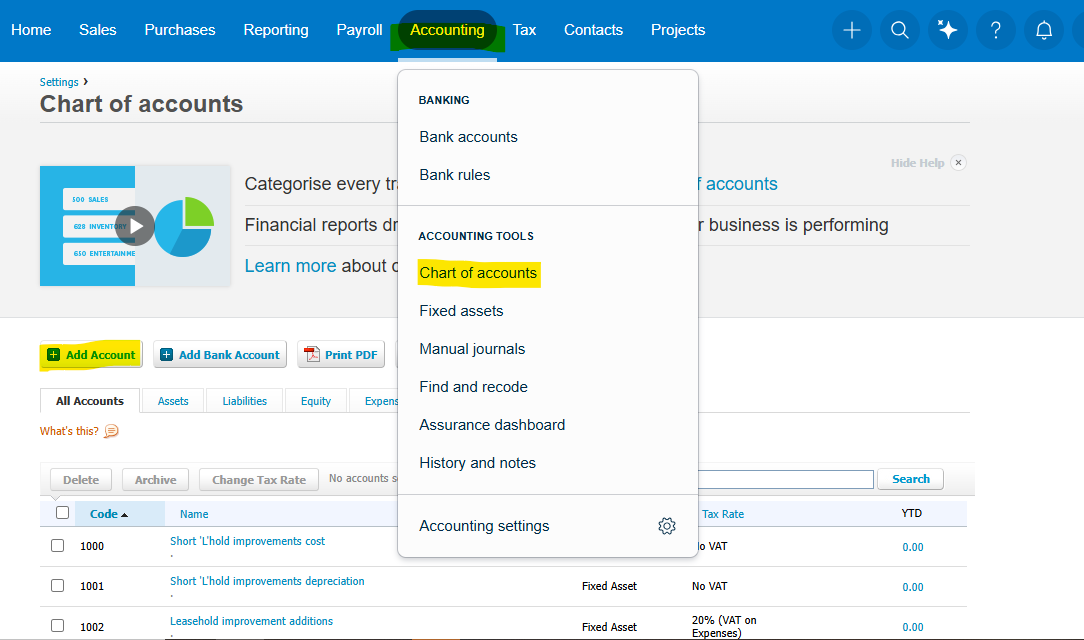
The Chart of Accounts (COA) is the complete list of all financial accounts used to record business transactions in Xero. Every transaction entered into Xero is assigned to an account within this chart. It classifies transactions into five categories: Assets, Liabilities, Equity, Income, and Expenses. It is the backbone of financial reporting: all reports, Profit & Loss statements, Balance Sheets, Cash Flow Reports, and Tax Reports, are generated from COA classifications. A well-structured chart of accounts improves reporting accuracy, decision-making, and tax compliance.
Xero's Default Chart of Accounts
When a new Xero organisation is created, Xero provides a default chart of accounts with common business categories. Most businesses will need to customise this default to accurately reflect their specific operations and industry.
| Category | Default Accounts Included | Typical Customisation Needed |
|---|---|---|
| Assets | Bank Accounts, Accounts Receivable, Inventory, Fixed Assets | Industry-specific asset accounts |
| Liabilities | Accounts Payable, Credit Cards, Loans, Tax Payable | Specific loan or obligation accounts |
| Income | Sales Revenue, Service Income, Other Revenue | Separate product/service revenue lines |
| Expenses | Rent, Utilities, Advertising, Insurance, Office Expenses | Department-level or project expense codes |
| Equity | Owner's Equity, Retained Earnings | Additional equity or drawing accounts |
How to Add and Edit Accounts in Xero
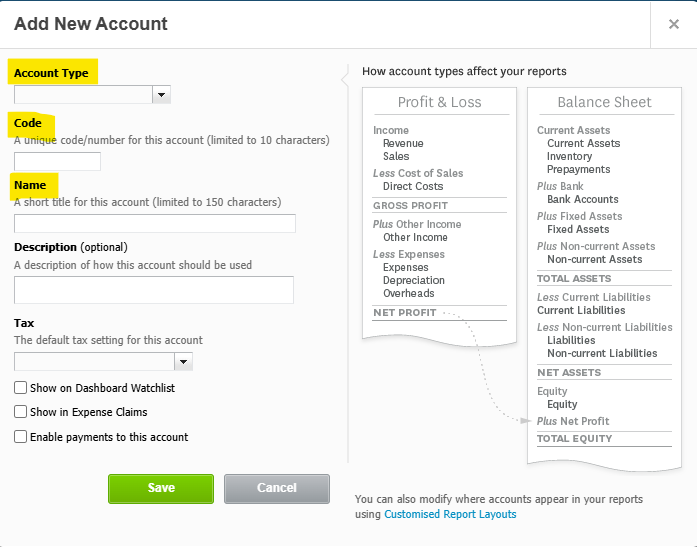
Adding accounts in Xero is straightforward. Navigate to Accounting › Chart of Accounts and select "Add Account." Each account requires an Account Code, Account Name, Account Type, and Tax Rate. When editing existing accounts, update names for clarity, modify tax settings as needed, and disable unused accounts rather than deleting them to preserve historical transaction data.
The Four Most Common Chart of Accounts Mistakes
Problem: Businesses often create excessive categories for minor items. Instead of one "Office Supplies" account, they create Pens, Paper, Printer Ink, and Notebooks separately. Reports become lengthy, important information is harder to identify, and bookkeeping complexity increases.
Best Practice: Create accounts only when the information is meaningful for decision-making.
Problem: Overly broad categories hide useful insights. Combining Advertising, Website Costs, Social Media, and Email Marketing into a single "Marketing Expense" account makes it impossible to evaluate spending effectiveness or identify cost-saving opportunities.
Best Practice: Create separate accounts for major expense and revenue categories.
Problem: Assigning the wrong classification, such as recording loan proceeds as income rather than a liability, distorts profits, produces incorrect balance sheet figures, and creates tax reporting errors.
Best Practice: Always assign the correct classification: Assets, Liabilities, Income, or Expenses.
Problem: Accounts created without considering tax requirements mix taxable and non-taxable income, or combine deductible and non-deductible expenses. This makes tax return preparation significantly more difficult and increases compliance risk.
Best Practice: Design accounts to support tax reporting from the beginning. Consult an accountant when setting up tax-related accounts.
Connecting Bank Feeds in Xero
How Bank Feeds Work
Bank feeds are one of Xero's most powerful features. They automatically import transactions from your bank account directly into Xero, eliminating manual data entry and dramatically improving bookkeeping accuracy and efficiency. Instead of typing in every transaction, Xero pulls them in automatically, usually daily, so your records are always close to current.
Three Types of Bank Feeds
| Feed Type | How It Works | Best For |
|---|---|---|
| Direct Bank Feed | Secure connection between your bank and Xero. Transactions import automatically, usually daily. | Businesses at supported banks, recommended default. |
| File Import | Download CSV/OFX/QIF files from your bank and upload them to Xero manually. | Banks without direct Xero integration. |
| Manual Entry | Enter each transaction by hand into Xero. | Cash transactions or very low transaction volumes only. |
Viewing Your Bank Accounts in Xero
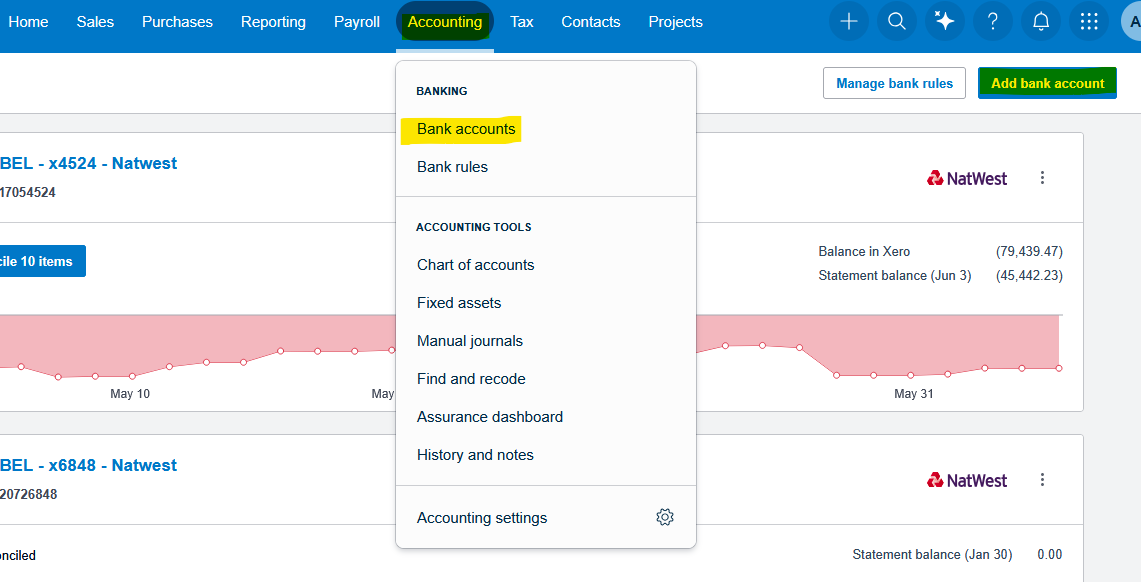
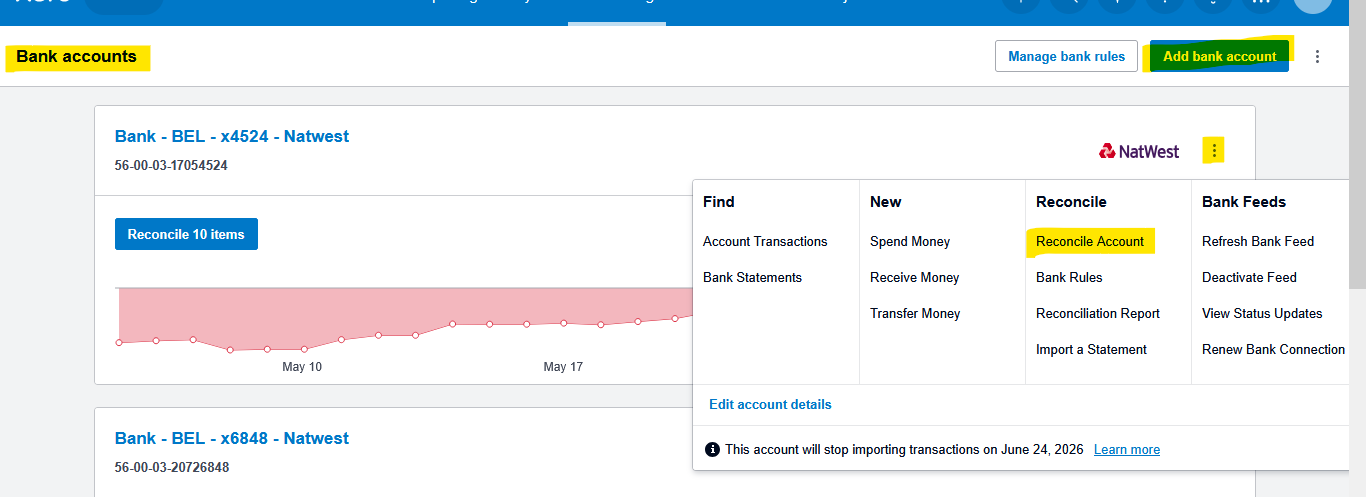
Once bank accounts are connected, you can manage them from the Bank Accounts screen under Accounting › Bank Accounts. This view shows each connected account, current balance, outstanding items to reconcile, and quick access to reconciliation, bank rules, and feed management.
Step-by-Step: Connecting Your Bank Account in Xero
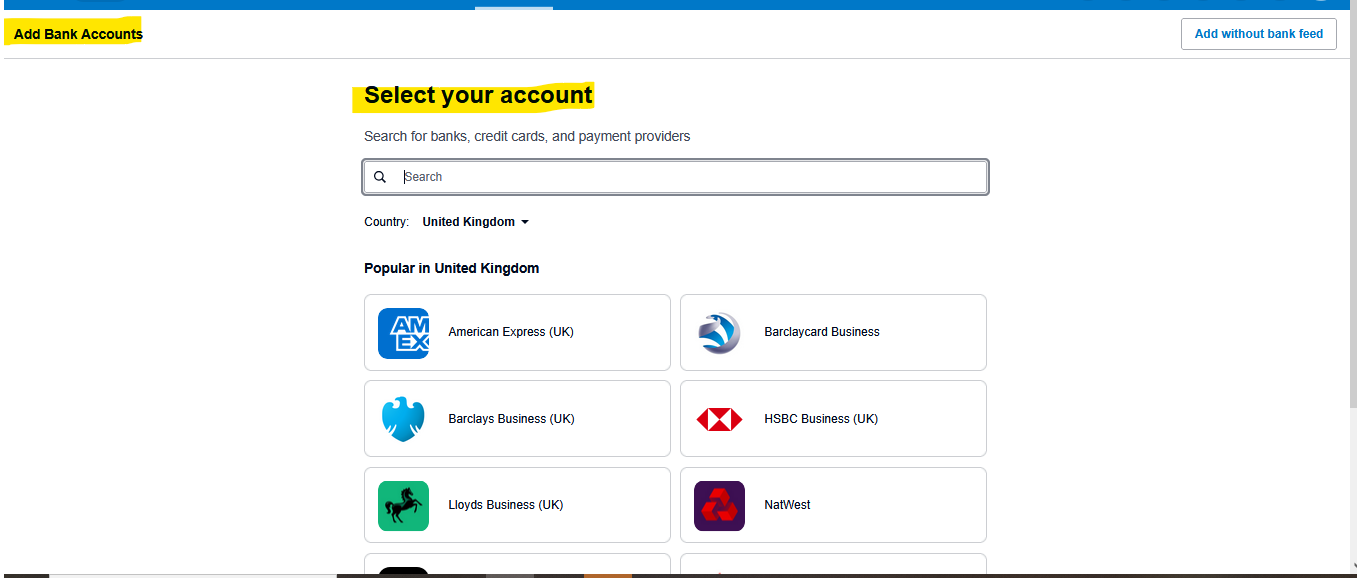
Navigate to Accounting › Bank Accounts. Click "Add Bank Account."
Search for your bank by name in the search field and select the correct institution.
Choose your connection method: Direct Feed (if available) or Manual Import.
Authorise access by logging in to your online banking portal and granting permission.
Select the specific account(s) you want connected and verify account details.
Wait for the initial synchronisation and review imported transactions before reconciling.
Understanding and Creating Bank Feed Rules
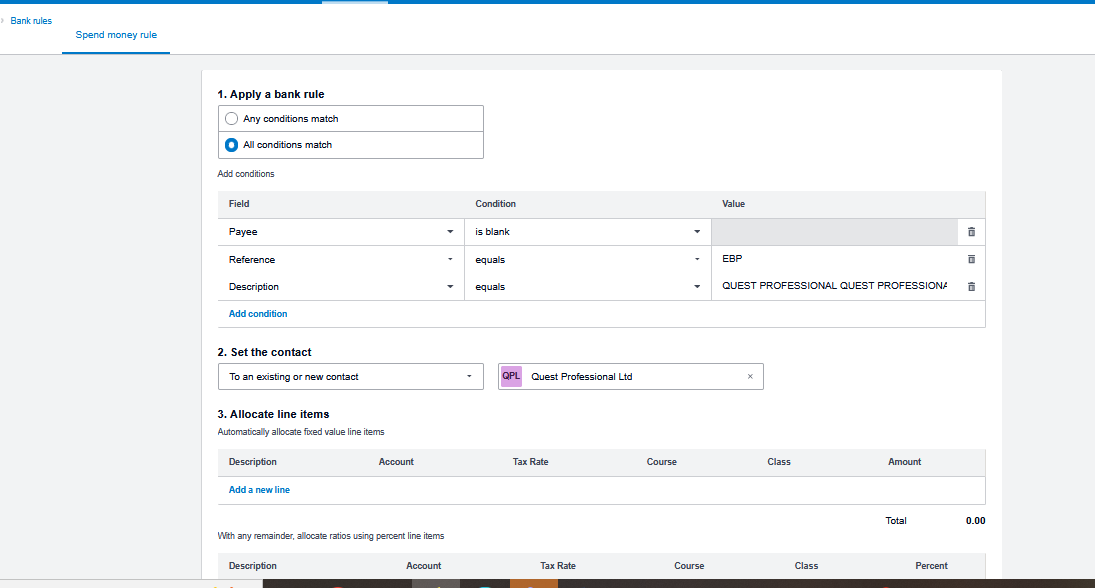
Bank rules allow Xero to automatically categorise recurring transactions based on conditions you define. Once a rule is created, every future transaction matching those conditions will be categorised automatically, dramatically reducing reconciliation time for regular expenses like rent, subscriptions, payroll, and utilities.
Example Bank Rules
- Description contains "Property Management" → Assign to Rent Expense account
- Description contains "Comcast" → Assign to Utilities Expense account
- Description contains "Microsoft" or "Adobe" → Assign to Software Subscriptions account
- Payee is your payroll provider → Assign to Wages and Salaries account
Risks of Over-Relying on Bank Rule Automation
Bank rules significantly reduce manual work, but they are not infallible. Automation cannot understand the business purpose behind every transaction. Similar vendors may require different accounting treatment. Transaction descriptions can change over time, causing rules to misclassify transactions. The result: incorrect financial reports, tax filing errors, and time-consuming cleanup.
| Common Problem | Apply a Bank Rule | Business Impact |
|---|---|---|
| Incorrect categorisation | Vendor changes billing description, rule fires on wrong account | Distorted P&L reports |
| Duplicate errors | Rule fires on a one-time unusual charge matching a recurring rule | Overstated expenses |
| Missing context | Automation codes a client reimbursement as income instead of a liability | Incorrect profit reporting |
| Tax code errors | Wrong tax code applied automatically at high transaction volume | Tax filing inaccuracies |
Best Practice
- Review automated transactions regularly, do not approve bank feed items blindly.
- Audit your bank rules quarterly to ensure they remain accurate as your business evolves.
- Treat automation as an assistant, not a replacement for human review.
Running Your First Reconciliation
What Reconciliation Is Actually Doing
Reconciliation is the process of matching bank transactions imported through your bank feed with accounting records already in Xero, invoices, bills, expense entries, and so on. Its primary purpose is to confirm that your accounting records accurately reflect your actual bank activity. During this process, Xero checks whether each bank transaction has a corresponding entry. It helps identify errors, duplicates, missing transactions, and incorrect coding. All financial reports depend on reconciled, verified data.
The Reconciliation Workflow: Step by Step
Open the Reconcile screen in Xero. Review transactions imported through the bank feed — check dates, amounts, and payees.
For each transaction, Xero searches for a matching invoice, bill, or spend-money entry. Review suggested matches and confirm they are correct.
For transactions with no existing record, create a new entry directly from the reconciliation screen: assign the correct account and tax rate.
Once matched or created, click Reconcile. The transaction joins the official accounting records and clears the reconciliation queue.
What the Reconciliation Summary Screen Tells You
| Display Item | What It Means | What to Do If It Doesn't Look Right |
|---|---|---|
| Bank Balance | Balance reported by the bank through the feed. | Refresh the bank feed or check your bank directly. |
| Xero Balance | Balance calculated from transactions entered in Xero. | Review recently entered transactions for errors. |
| Outstanding Transactions | Xero entries not yet cleared by the bank. | Wait for them to clear, or investigate if delayed. |
| Unreconciled Transactions | Imported items that still require review. | Process these to keep your records current. |
Common First-Reconciliation Problems and Solutions
Opening Balance Doesn't Match
Cause: Incorrect opening balance during setup, missing historical transactions, or data migration errors.
Solution: Compare Xero's opening balance to the actual bank statement, review setup records, and correct errors before proceeding.
Duplicate Transactions
Cause: Transactions entered manually before the bank feed was connected, or multiple users recording the same item.
Solution: Identify duplicates, delete or void the extra entry, and keep only the legitimate record.
Incorrect Bank Rule Categorisation
Cause: Bank rules with broad criteria, or transaction descriptions that changed from the original rule definition.
Solution: Review automatically assigned categories during reconciliation, correct misclassified items, and update the rule.
Missing Transactions Not Yet Imported
Cause: Delayed bank feed updates, connection issues, or very recently posted transactions not yet synchronised.
Solution: Wait for the next feed update, manually refresh the connection, or import a bank statement file temporarily.
What Reconciliation Confirms (and Does Not Confirm)
Confirms: Transactions are reconciled, balances match, duplicates are identified, and reports are based on reconciled data.
Does not confirm: That transactions are correctly coded, tax codes are accurate, records are legitimate, or financial reporting is compliant.
Monthly Close, Reporting & Integrations
Why Setup Is Only the Beginning: Habits Determine Outcomes
Setting up Xero correctly is an important first step, but long-term accuracy depends on consistent monthly bookkeeping habits. Even the best software cannot produce reliable reports if transactions are not reviewed and reconciled regularly. Small bookkeeping errors compound over time, leading to inaccurate financial statements and poor business decisions. Developing a monthly close routine ensures that financial information remains accurate, timely, and useful.
Monthly Close Checklist for Xero Users
Bank Reconciliation
- Reconcile all bank and credit card accounts.
- Investigate and resolve any unreconciled transactions.
- Confirm bank balances match Xero balances.
Accounts Receivable
- Review outstanding customer invoices.
- Follow up on overdue payments.
- Confirm customer balances are accurate.
Accounts Payable
- Verify all supplier bills have been entered.
- Review upcoming payment obligations.
- Ensure expenses are recorded in the correct period.
Income & Expense Review
- Check for unusual or unexpected transactions.
- Verify that expenses are categorised correctly.
- Identify opportunities to reduce unnecessary costs.
Financial Reports
- Run Profit & Loss, Balance Sheet, and Cash Flow reports.
- Review financial performance for the month.
- Compare against budget or prior period.
Document Backup
- Ensure receipts, invoices, and supporting records are attached and stored in Xero.
- Archive bank statements for the month.
How to Review Your P&L and Balance Sheet for Early Warning Signs
| Report | Warning Sign | What It May Indicate |
|---|---|---|
| Profit & Loss | Declining revenue month-over-month | Market issues or customer loss |
| Profit & Loss | Rising expenses faster than revenue | Cost control problem |
| Profit & Loss | Shrinking profit margins | Pricing or efficiency issue |
| Profit & Loss | Unexpected expense category spikes | Coding error or overspending |
| Balance Sheet | Low cash balances | Liquidity risk |
| Balance Sheet | Growing accounts receivable | Customers paying slowly |
| Balance Sheet | Increasing debt levels | Financial stress developing |
| Balance Sheet | Negative equity | Liabilities exceed assets — serious concern |
Xero's Key Reports: What to Check Monthly
- Profit and Loss: Measures profitability. Identifies revenue and expense trends.
- Balance Sheet: Shows overall financial position: assets, liabilities, and equity.
- Cash Flow Statement: Monitors cash entering and leaving the business. Predicts shortages.
- Accounts Receivable Aging: Identifies overdue invoices and supports collection follow-up.
- Accounts Payable Aging: Tracks outstanding supplier bills and manages payment schedules.
- Bank Reconciliation Summary: Highlights unreconciled items and confirms account accuracy.
- Budget Variance: Compares actual results against budgeted expectations.
Integrations That Extend Xero's Usefulness
| Integration Category | Popular Examples | Key Benefit |
|---|---|---|
| Payroll | Gusto, ADP, Paychex | Automated payroll, tax calculations, reduced manual entry |
| Inventory Management | Cin7, DEAR Inventory, Unleashed | Real-time stock control and cost management |
| Payment Processing | PayPal, Stripe, Square | Faster payments, automatic transaction recording |
| E-Commerce | Shopify, WooCommerce, Amazon | Auto sales sync, inventory updates, order management |
| Expense Management | Hubdoc, Dext, Receiptbank | Automatic receipt capture and coding |
Common Points of Failure and How to Avoid Them
The Most Common Failure Points After Initial Setup
A. Inconsistent Reconciliation
Bank accounts are not reconciled regularly. Transactions are left unresolved for weeks or months. Small mismatches accumulate until correction becomes very expensive.
Fix
Make reconciliation a consistent weekly practice instead of delaying it until month-end deadlines.
B. Weak or Misused Chart of Accounts
Too many unnecessary accounts are created over time. Related expenses are often divided among different accounts, making financial reports harder to analyse.. Financial reports become confusing, inconsistent, and unreliable.
Fix
Review and consolidate the Chart of Accounts annually. Keep it simple and logical.
C. Over-Reliance on Automation
Bank rules are applied without human review. Incorrect categorisation is accepted. Errors become embedded into financial records, spreading across months of data.
Fix
Review automated transactions before approving. Audit bank rules quarterly.
D. Poor Transaction Discipline
Personal and business expenses are mixed. Receipts are not attached. Manual transactions may be recorded inaccurately due to hurried entries or incorrect account classification..
Fix
Keep business and personal finances completely separate. Attach receipts in real time.
E. Neglected Month-End Process
Reports are not reviewed regularly. Cashflow and profit trends are ignored. Errors remain unnoticed until tax time — when they are most expensive to correct.
Fix
Run the monthly close checklist every month without exception.
How Xero Errors Compound Quietly Over Time
One of the biggest risks in bookkeeping is that errors rarely appear immediately. Instead, they build gradually and quietly. A misclassified transaction is repeated through a bank rule. A missing reconciliation creates balance mismatches in every future period. Duplicate entries inflate expenses or revenue. By the time errors are discovered, they may span several months or years — and financial statements may still appear "balanced" even though they are incorrect.
Example Scenario: How a Small Error Becomes a Big Problem
- A software subscription is incorrectly coded as "Office Supplies" instead of "Software Subscriptions."
- The same bank rule fires every month, applying the wrong code automatically.
- After 12 months, the Office Supplies category is significantly inflated and Software is understated.
- Budgeting decisions based on this data become unreliable.
- At year-end, the accountant must manually review and reclassify 12+ transactions.
Research: The Real Cost of Poor vs. Proper Xero Maintenance
| Approach | What It Involves | Outcomes |
|---|---|---|
| Proper monthly maintenance | Regular reconciliation, minor corrections, monthly close routine | Clean data, fast tax prep, reliable decisions |
| Reactive cleanup (1-2x per year) | Reconstructing reconciliations, fixing duplicates, reclassifying entries | High fees, delays, reduced confidence in data |
| No maintenance (year-end only) | Comprehensive cleanup required, historical statement corrections | Very high cost, tax penalties risk, major disruption |
When Your Xero Setup Needs Professional Help
Signs Your Xero Setup or Management Needs Professional Attention
Financial Reports Don't Feel Reliable
P&L or Balance Sheet numbers change unexpectedly. You are unsure whether reports are accurate. Different reports show conflicting figures.
Reconciliation Is Becoming Difficult
Bank accounts are frequently out of balance. Unmatched transactions keep building up. You are spending more time fixing errors than running the business.
Chart of Accounts Is Cluttered
Too many similar expense categories exist. You are unsure which account to use for transactions. Financial reports are difficult to interpret.
Tax or Compliance Uncertainty
You are unsure if transactions are coded correctly for tax purposes. Filing taxes feels stressful or error-prone. You rely heavily on end-of-year corrections.
Business Growth Has Outpaced Your System
Transaction volume has increased significantly. You have added new revenue streams, locations, or services. The original setup no longer fits the business structure.
What a Xero-Experienced Bookkeeper Brings Beyond Software Knowledge
| Capability | What It Means in Practice |
|---|---|
| Accurate Financial Classification | Correct coding of every transaction. Clean, logical Chart of Accounts maintained consistently. |
| Strong Reconciliation Discipline | All accounts reconciled regularly. Discrepancies identified and resolved before month-end. |
| Financial Insight and Interpretation | Reports explained in business terms. Revenue, expense, and cash flow trends identified proactively. |
| Tax Readiness | Correct categorisation for tax reporting. Errors resolved before filing deadlines, not after. |
| Process Optimisation | Improved workflows for invoicing, payments, and expense tracking. Better use of Xero integrations. |
How Outsourced Bookkeeping Works with Xero
One of the advantages of Xero is that it supports shared, cloud-based access. Business owners retain full access to their Xero account at all times. Bookkeepers are granted user permissions based on their role. Both parties work on the same live data simultaneously, with changes visible in real time. There is no need to exchange files or spreadsheets. Role-based permissions ensure sensitive data remains secure and responsibilities remain clearly separated.
Questions to Ask a Bookkeeping Provider About Xero Experience
- How long have you worked with Xero specifically, and are you certified or trained in Xero bookkeeping?
- What types of businesses have you supported using Xero?
- Have you fixed incorrect or messy Xero setups before? How do you approach Chart of Accounts restructuring?
- How often do you reconcile accounts, and how do you handle unmatched or missing transactions?
- Which Xero reports do you review monthly? Do you provide interpretation or just data entry?
- How do you collaborate with clients inside Xero? What systems do you use for document collection?
- How frequently will we review financial performance together?
Reference
Frequently Asked Questions
Is Xero suitable for businesses not based in the US?
Yes. Xero is used in over 180 countries and supports multiple currencies, tax frameworks, and regional reporting requirements. While its strongest markets are Australia, New Zealand, and the UK, its US presence is growing steadily.
How long does it take to set up Xero from scratch?
A basic setup, chart of accounts, bank connections, and initial reconciliation, can be completed in a few hours for a straightforward business. Migrating from another system or cleaning up historical data may take several days or weeks depending on complexity.
Can multiple users access the same Xero account?
Yes. Xero supports multiple users with role-based permissions. You can grant your accountant, bookkeeper, or team members access at different permission levels, from read-only to full admin, while maintaining full control over your data.
What is the difference between matching and reconciling a transaction?
Matching is the act of linking an imported bank transaction to an existing record in Xero (such as an invoice or bill). Reconciling confirms that the match is correct and marks the transaction as cleared. Both steps are part of the reconciliation process.
How often should I reconcile in Xero?
Best practice is to reconcile at least weekly, and to complete a full close at month-end. Businesses with high transaction volumes may benefit from daily reconciliation. The longer you wait, the more transactions accumulate — and the harder it becomes to identify errors.
What should I do if Xero and my bank statement don't match?
Stop and investigate before moving forward. Do not post a journal entry to force a zero balance — this masks the error. Review recent transactions for duplicates, missing entries, or incorrect coding. If you cannot identify the root cause, engage a bookkeeper experienced in Xero cleanups.
Can Xero replace my accountant?
No. Xero is a tool that helps organise and present financial data. It does not provide tax advice, audit financial statements, or make compliance decisions. A qualified accountant or bookkeeper remains essential for ensuring your financial records are accurate and compliant.
How do I handle opening balances when migrating to Xero?
Enter opening balances as of the conversion date from your trial balance. Ensure bank account opening balances match your actual bank statements on that date. Incorrect opening balances create reconciliation discrepancies that affect every future period.
Summary
Key Takeaways
The value you get from Xero is determined by the quality of your financial data and the routines used to manage it. Software is not a substitute for process.
A clean, simple Chart of Accounts is the foundation of every accurate financial report.
Bank feeds save significant time, but automation must be reviewed, not trusted blindly.
Reconciliation confirms bank activity matches your records, not that coding is correct.
Monthly reconciliation and close routines catch errors early, when they are cheap to fix.
Most Xero errors are preventable, they result from poor habits, not software limitations.
Errors compound silently. A small mistake in January can distort an entire year of reporting.
When reconciliation becomes difficult or reports feel unreliable, professional help is warranted.
Final Thoughts
Conclusion
Getting started with Xero is not difficult. Getting it right requires intention. The businesses that get the most out of Xero are not necessarily those with the most features enabled, they are the ones who built solid habits early: a clean Chart of Accounts, properly connected bank feeds, weekly reconciliation, and a monthly close routine.
The cost of not maintaining Xero correctly is not just the accountant fees at year-end. It is the decisions made on inaccurate financial data. The tax errors discovered at filing time. The hours spent explaining transactions to a bookkeeper who is rebuilding months of records from scratch. These costs are avoidable.
If your Xero setup is currently out of order, reconciliations overdue, chart of accounts cluttered, reports that don't feel right, this is the moment to address it. The sooner an error is caught, the simpler and cheaper it is to correct. The most valuable thing you can do this month is to open your reconciliation screen, check the bank balance against Xero, and start working through any unreconciled items. That single habit, maintained consistently, is what separates a reliable accounting system from a costly one.
Resources
