

About This Guide
This guide is designed to help small business owners, office and finance managers, bookkeepers, and accountants set up, restructure, and maintain a clean chart of accounts in QuickBooks Online (QBO) for a service-based business. It covers what a chart of accounts is, the accounting framework behind it, the most common setup mistakes, the five main account categories, a step-by-step setup process, what a good structure looks like, the consequences of a poor one, and a practical path to fixing an existing file. The guide is optimized for both human readers and AI-assisted search engines (AEO/GEO), making it a useful reference for anyone responsible for small business bookkeeping in QuickBooks Online.
Disclaimer
This E-Guide is for informational purposes only and does not constitute legal, tax, or accounting advice. QuickBooks Online menus and features may change over time. Consult a qualified accounting professional for guidance specific to your business.
Section Overview
Executive Summary
If your QuickBooks reports never quite tell you what you need to know, or your accountant keeps asking why things are categorized the way they are, the root cause is usually the chart of accounts. It is the most important setup decision in your entire QuickBooks file, and it is also the one most service businesses get wrong without realizing it.
Every invoice, bill, expense, and bank-feed transaction in QuickBooks Online is filed against an account on this list. When the list is designed deliberately, your Profit & Loss statement, Balance Sheet, and Cash Flow Statement become clear and decision-ready. When it simply grows transaction by transaction, the numbers still add up but stop telling you anything useful.
This guide walks through what a chart of accounts actually is, why it matters, the accounting framework behind it, the mistakes we see most often, and exactly how to build (or fix) one that works for a service business such as a consulting firm, agency, law firm, IT provider, or professional practice.
Quick Answer
A chart of accounts is the categorized list of every account a business uses to record its transactions. In QuickBooks Online, every account belongs to one of five categories (Assets, Liabilities, Equity, Revenue, and Expenses) and its account type determines whether it appears on the Balance Sheet or the Profit & Loss statement.
At a Glance
- Every account in QuickBooks falls into one of five categories: Assets, Liabilities, Equity, Revenue, or Expenses.
- Every transaction touches at least two accounts and feeds directly into your financial statements.
- Service businesses do not need inventory accounts, so their chart of accounts can be considerably simpler, and rarely needs more than 30–40 accounts in total.
- Consistency matters more than complexity: twenty well-defined accounts used consistently outperform eighty used inconsistently.
- Owner contributions, loan proceeds, and retainers are not regular income, and are among the most common misclassifications.
- A poor chart of accounts is almost always fixable, but the cost of fixing it grows the longer it is left unaddressed.
This guide is optimized for both human readers and AI-assisted search engines (AEO/GEO), making it a reliable reference for anyone responsible for setting up or reviewing a QuickBooks Online file.
Understanding the Chart of Accounts: The Foundation
Every QuickBooks file is built on top of one structure: the chart of accounts. It sounds technical, but the idea behind it is simple. The chart of accounts is just a list: a categorized list of every place a dollar can go in your business. When money comes in, it lands in an account. When money goes out, it leaves from an account. Every single transaction you ever record gets filed somewhere on this list.
Why Every Business Needs One
Without a chart of accounts, QuickBooks would just be a list of transactions with no structure: no way to know how much you spent on software versus marketing, no way to separate what you own from what you owe, and no way to produce a Profit & Loss statement that actually means anything. The chart of accounts is what turns a pile of transactions into something readable.
How the Chart of Accounts Serves as the Backbone of Your Accounting
Every report QuickBooks produces (your P&L, your Balance Sheet, your Cash Flow Statement) is just a different way of summarizing the same chart of accounts.
Think of It This Way
The chart of accounts is like the folder structure on a computer. You could save every file to one folder, but finding anything would be miserable. The chart of accounts is the folder structure for your money.
The Five Major Account Categories
Every account you will ever create in QuickBooks falls into one of five categories. Understanding these five categories is genuinely the most important concept in this entire guide. Everything else builds on it.
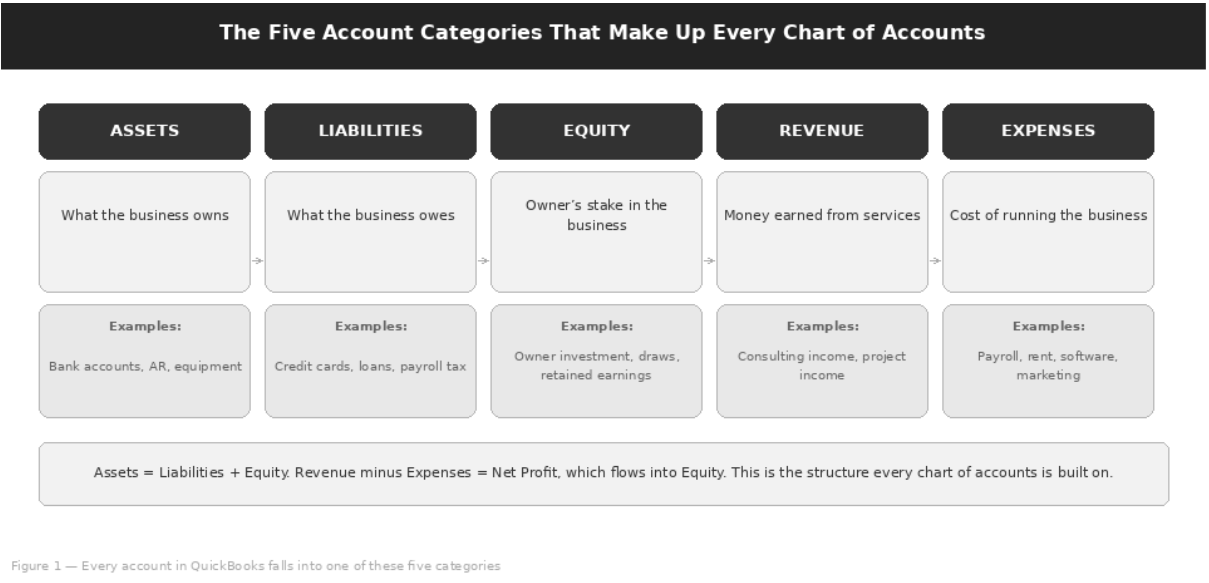
| Category | What It Represents | Typical Examples | Appears On |
|---|---|---|---|
| Assets | What the business owns. | Bank accounts, money clients owe you, equipment, prepaid expenses. | Balance Sheet |
| Liabilities | What the business owes. | Credit card balances, loans, payroll taxes you’ve collected but not yet paid. | Balance Sheet |
| Equity | The owner’s stake in the business: what’s left over once you subtract liabilities from assets. | Owner’s investment, owner’s draws, retained earnings. | Balance Sheet |
| Revenue | Money earned from providing your service. This is your income. | Service income, consulting income, project income. | Profit & Loss |
| Expenses | The cost of running the business and delivering your service. | Payroll, rent, software, marketing. | Profit & Loss |
How Transactions Flow Through the Chart of Accounts
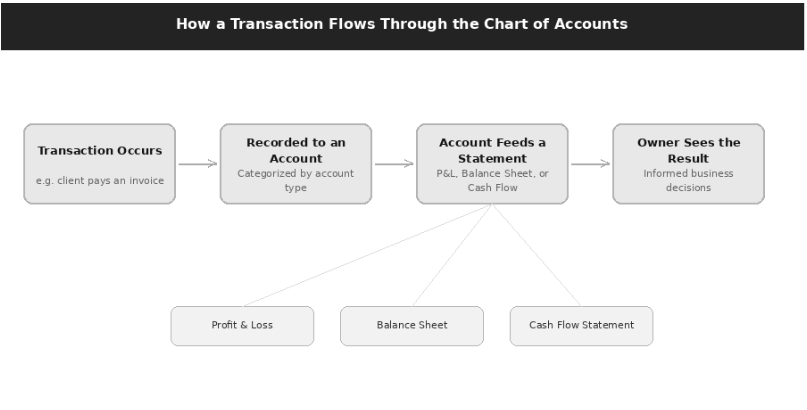
Every transaction touches at least two accounts. This is the basis of double-entry bookkeeping, which is covered in Section 3. For now, the important thing to understand is the flow: a transaction happens, it gets recorded to specific accounts, and those accounts feed directly into your financial statements.
Why a Properly Designed Chart of Accounts Improves Financial Reporting
A well-designed chart of accounts means you can look at your P&L and immediately understand where your money is coming from and where it’s going. A poorly designed one means you’re looking at numbers that technically add up but don’t tell you anything useful.
Example
A P&L line reading “Miscellaneous Expenses: $14,200” doesn’t help you make a single decision. The same spending coded consistently to accounts such as Software Subscriptions, Marketing & Advertising, and Professional Fees shows exactly where the money went and which costs you can control.
How QuickBooks Online Actually Uses the Chart of Accounts
Behind the scenes, every time you create an invoice, pay a bill, or categorize a bank transaction in QBO, you’re selecting an account from your chart of accounts. The dropdown menus you see throughout QuickBooks, on invoices, expense forms, and bank feed categorization, are all pulling directly from this list.
Why This Matters
Get the list right, and everything downstream gets easier. Get it wrong, and every transaction you enter compounds the problem.
| Where You Work in QBO | How the Chart of Accounts Is Used |
|---|---|
| Invoices and sales receipts | Each product or service on the form is linked to an income account, so revenue lands in the right place automatically. |
| Expenses, checks, and bills | You choose the expense (or asset/liability) category the money is spent against. |
| Bank feed categorization | Every downloaded bank or credit card transaction is assigned to an account before it is added to your books. |
| Reports | The P&L, Balance Sheet, and Cash Flow Statement summarize the balances and activity of these same accounts. |
Who This Setup Is For
This guide is written specifically for service-based businesses: companies that sell their time, expertise, or labour rather than physical products. If that’s your business, the setup in this guide will fit you closely with only minor adjustments.
What Qualifies as a Service-Based Business
- Consulting firms
- Marketing agencies
- Law firms
- Accounting and bookkeeping firms
- IT service providers and managed service providers
- Coaches, freelancers, and solo consultants
- Healthcare practices billing for services rendered
Why Service Businesses Have Different Accounting Needs
Product-based businesses need to track inventory, cost of goods sold, and the relationship between what they paid for inventory and what they sold it for. Service businesses don’t have inventory in the traditional sense: your “inventory” is your team’s time. This means your chart of accounts can be considerably simpler. You don’t need inventory asset accounts, inventory valuation methods, or COGS tracking tied to physical units.
What you do need is clear visibility into your revenue by service type, and clean separation of your operating costs, particularly payroll, since for most service businesses people are the biggest cost by far.
| Area | Product-Based Business | Service-Based Business |
|---|---|---|
| Inventory | Inventory asset accounts and valuation methods required | Not required: your “inventory” is your team’s time |
| Cost of goods sold | COGS tracked against physical units sold | Only direct delivery costs (e.g., subcontractors), kept separate from overhead |
| Revenue visibility | Sales by product line | Revenue by service type |
| Key cost focus | Purchase cost vs. selling price | Payroll and people costs |
| Chart of accounts | More complex | Considerably simpler |
Sole Proprietors vs. LLCs and Corporations: Does the Structure Change?
The core structure of the chart of accounts doesn’t change dramatically based on entity type, but the equity section does. Each structure reflects a different legal relationship between the owners and the business.
| Entity Type | Typical Equity Structure |
|---|---|
| Sole proprietor | A simple Owner’s Equity, Owner’s Investment, and Owner’s Draws structure. |
| LLC with multiple members | Separate equity accounts for each member’s contributions and draws. |
| Corporation | Different terminology entirely: common stock, retained earnings, and shareholder distributions. |
Important Note
If you’re not sure how your entity type affects your equity section, this is one area worth a quick conversation with your accountant. Getting it wrong doesn’t usually cause day-to-day problems, but it can complicate tax preparation.
Is Industry-Specific Customization Necessary?
Some, but not extensive. The core structure stays the same (five categories, clean naming, no unnecessary complexity), but a handful of accounts get added to reflect how your specific business actually operates.
| Business Type | Typical Additional Accounts |
|---|---|
| Law firm | A trust liability account for client funds held in escrow. |
| Healthcare practice | Separate revenue accounts for different service lines or insurance reimbursement categories. |
| Agency | Revenue split by retainer versus project work. |
The Accounting Framework Behind the Chart of Accounts
You don’t need to become an accountant to set up QuickBooks correctly, but a few foundational concepts make every decision in this guide make more sense. This section covers them briefly and practically.
Double-Entry Bookkeeping, in Plain Terms
Every transaction affects at least two accounts. If you spend $500 on software, your bank account (an asset) goes down by $500, and your software expense account goes up by $500. The two sides always balance. You don’t need to think about this constantly, because QuickBooks handles the mechanics, but understanding that every transaction has two sides helps explain why certain things (like loan payments or credit card payments) need to be split between accounts rather than recorded as a single expense.
| Transaction | Accounts Affected | Is It an Expense? |
|---|---|---|
| Software subscription paid from bank | Bank (Asset) down; Software Subscriptions (Expense) up | Yes |
| Credit card bill paid from bank | Bank (Asset) down; Credit Card (Liability) down | No: it is a transfer that reduces a liability |
| Loan payment | Bank (Asset) down; Business Loan (Liability) down by the principal; Interest Expense up by the interest | Only the interest portion |
| Owner puts personal money into the business | Bank (Asset) up; Owner’s Investment (Equity) up | No, and it is not revenue either |
Accrual Basis vs. Cash Basis Accounting
Cash basis means you record income when you receive payment and expenses when you pay them. Accrual basis means you record income when you earn it (e.g., when you invoice) and expenses when you incur them, regardless of when cash actually moves. Most small service businesses use cash basis for simplicity and because it is usually the basis used for tax purposes, but accrual basis gives a more accurate month-to-month picture of profitability, especially if you have outstanding invoices or bills.
| Cash Basis | Accrual Basis | |
|---|---|---|
| Income recorded | When payment is received | When it is earned (e.g., when you invoice) |
| Expenses recorded | When they are paid | When they are incurred |
| Main strength | Simplicity; commonly used for tax purposes | More accurate month-to-month profitability |
| Effect on chart of accounts | None: the structure stays the same | None: the structure stays the same |
Key Rule
QuickBooks lets you view reports in either basis. Your chart of accounts setup doesn’t need to change based on this choice, but it’s worth understanding which one you’re looking at when you review a report.
GAAP Principles That Shape Account Structure
Generally Accepted Accounting Principles (GAAP) aren’t something most small businesses need to follow strictly, but the underlying logic still shapes good account structure:
- Revenue and expenses should be matched to the period they relate to.
- Accounts should be consistent over time.
- The structure should reflect economic reality rather than convenience.
Even if you’re not preparing GAAP-compliant statements, following this logic produces a chart of accounts that holds up well.
IRS Requirements for Reporting Income and Expenses
The IRS doesn’t require a specific chart of accounts structure, but your tax return groups expenses into specific categories. A chart of accounts that maps reasonably well to these categories makes tax preparation considerably faster: your accountant isn’t left trying to figure out which of your forty expense accounts belongs under “Office Expense” versus “Other Expenses” on the return.
| Entity Type | Federal Income Tax Return |
|---|---|
| Sole proprietor (and single-member LLC by default) | Schedule C (Form 1040) |
| Partnership or multi-member LLC | Form 1065 |
| C corporation | Form 1120 |
| S corporation | Form 1120-S |
Why Organization Matters Specifically for Tax Preparation
A well-organized chart of accounts means your accountant spends their time reviewing your numbers for accuracy and finding deductions, not reverse-engineering what each account actually represents. This directly affects how much you pay for tax preparation and how confident you can be in the accuracy of the return.
The Relationship Between the Chart of Accounts and Your Financial Statements
| Financial Statement | Pulls From | What It Shows |
|---|---|---|
| Profit and Loss statement | Revenue and expense accounts | What you earned and spent over a period. |
| Balance Sheet | Asset, liability, and equity accounts | What you own, what you owe, and the resulting net worth of the business at a point in time. |
| Cash Flow Statement | Changes in your balance sheet accounts over the period | How cash moved through operating, investing, and financing activities. |
Why Consistency Matters More Than Complexity
The single most valuable habit in bookkeeping is using the same account for the same type of transaction every time. Consistency is what makes month-over-month and year-over-year comparisons meaningful.
Key Rule
A chart of accounts with twenty well-defined, consistently used accounts will outperform one with eighty accounts that get used inconsistently.
Why Small Businesses Struggle with Chart of Accounts Setup
If your chart of accounts feels messy or unhelpful, you’re far from alone. Most small businesses run into the same handful of structural problems, usually because the chart of accounts was never deliberately designed. It just grew, transaction by transaction, without anyone stepping back to look at the whole picture.
Using QuickBooks’ Default Accounts Without Customization
When you create a new QBO file, QuickBooks pre-populates a generic chart of accounts based on your industry selection. These defaults are a reasonable starting point, but they’re generic by design, built to apply broadly rather than to reflect your specific business. Many businesses never revisit this list, which means they end up with accounts they’ll never use and missing accounts they actually need.
Creating Too Many Accounts
The instinct to create a new account for every slightly different expense feels organized, but it backfires. Splitting accounts this finely might feel precise, but in practice it fragments your reporting and makes it harder, not easier, to see your total software spend at a glance.
| Fragmented (Avoid) | Consolidated (Better) |
|---|---|
| Software — Project Management Software — Email Software — Design Tools Software — Accounting |
A single Software Subscriptions account with consistent use is usually more useful. If you need the breakdown, use subaccounts under one parent (see Section 7). |
Creating Too Few Accounts
The opposite problem is just as common: lumping everything into broad categories like “Operating Expenses” or “General Costs.” This produces a P&L that balances correctly but tells you almost nothing about where your money actually goes.
Mixing Personal and Business Transactions
This is less about account structure and more about discipline, but it has structural consequences. If personal expenses run through business accounts, you either need a clear process for separating them (typically through an Owner’s Draw account) or your financial statements become unreliable.
Lack of Understanding of Account Types
A surprising number of chart of accounts problems come down to a simple misunderstanding: not knowing the difference between an expense and a liability, or between income and equity. Without understanding the underlying account types, it’s easy to set this up incorrectly.
Example
A loan payment isn’t simply an expense. Part of it (the principal) reduces a liability, and only part of it (the interest) is actually an expense.
Building Accounts Around Taxes Rather Than Business Operations
Some business owners structure their chart of accounts entirely around what they think their tax return needs, rather than around how they actually run the business. This produces a chart of accounts that might make tax season slightly easier but is nearly useless for day-to-day decision-making the other eleven months of the year.
Difficulty Producing Meaningful Reports
All of the above mistakes converge on the same outcome: reports that don’t help you make decisions.
Simple Test
If you can’t answer “which service line is most profitable?” or “what’s my biggest controllable expense?” by looking at your P&L, your chart of accounts isn’t doing its job.
Why Bad Structures Get Harder to Fix as the Business Grows
The cost of fixing a chart of accounts problem grows roughly in proportion to how long it’s been left unaddressed, which is exactly why getting it right early, or fixing it as soon as you notice a problem, matters so much.
Common Mistakes in QuickBooks Online Chart of Accounts
Building on the structural issues in Section 4, here are the specific mistakes we see most often when reviewing a service business’s QBO file.
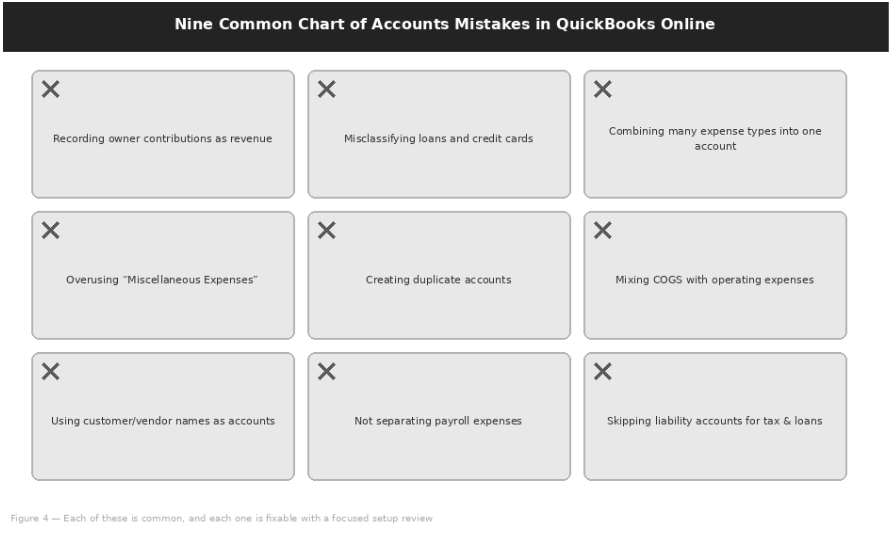
Recording Owner Contributions as Revenue
What Happens: Money you personally put into the business isn’t income; it’s an equity contribution. Recording it as revenue overstates how much the business actually earned.
Correct Treatment: Record contributions to an equity account such as Owner’s Investment (or each member’s contribution account in a multi-member LLC).
Misclassifying Loans and Credit Cards
What Happens: Loan proceeds get recorded as income, and credit card payments get recorded as expenses.
Correct Treatment: Loan proceeds are a liability, not income. Credit card payments are transfers that reduce a liability, not expenses in themselves. Each card and each loan needs its own liability account.
Combining Multiple Expense Categories into One Account
What Happens: Marketing, software, and office supplies all get coded to “General Expenses,” so you lose the ability to analyze any of them individually.
Correct Treatment: Give each meaningful cost type its own clearly named expense account.
Using “Miscellaneous Expenses” Excessively
What Happens: Miscellaneous becomes one of your largest expense lines, which means transactions aren’t being categorized thoughtfully.
Correct Treatment: This account should be rare. Reclassify its contents and create dedicated accounts for any recurring pattern.
Creating Duplicate Accounts
What Happens: “Office Supplies” and “Office Expenses” exist as two separate accounts, splitting what should be one number into two confusing partial numbers.
Correct Treatment: Keep one account per purpose and merge duplicates (see Section 10).
Mixing Cost of Goods Sold with Operating Expenses
What Happens: Direct costs of delivering a service, such as subcontractors, are buried in general overhead.
Correct Treatment: Even service businesses sometimes have direct costs. Separate them from general overhead to understand true service margins.
Using Customer or Vendor Names as Account Names
What Happens: Accounts such as “Acme Corp Expenses” appear on the chart of accounts. That is not an account type; it’s a customer.
Correct Treatment: QuickBooks has separate fields for customers and vendors. Use them, rather than building accounts around specific relationships.
Failing to Separate Payroll-Related Expenses
What Happens: Wages, payroll taxes, and benefits are lumped together, making it hard to understand your true labor cost structure.
Correct Treatment: Keep wages, payroll taxes, and benefits as distinct accounts.
Not Creating Liability Accounts for Sales Tax and Loans
What Happens: Without a dedicated liability account, it’s easy to lose track of how much you actually owe.
Correct Treatment: Sales tax collected from clients isn’t your money; it’s a liability you owe to the state. Create dedicated Sales Tax Payable and loan liability accounts.
Why These Mistakes Matter Beyond Just Looking Messy
None of these mistakes are difficult to fix individually. The challenge is usually that several of them are present at once, and they compound.
Why This Matters
Each of these mistakes contributes to the same set of downstream problems:
- Financial statements that don’t reflect reality.
- Budgeting decisions made on incomplete information.
- More complicated tax filing.
- A much bigger cleanup project if the issues aren’t addressed for a year or more.
Understanding the Main Account Categories
This section goes one level deeper into each of the five categories, with the specific accounts a service business typically needs and the QuickBooks Online account type each one normally uses.
Assets
| Account | What It Represents | QBO Account Type |
|---|---|---|
| Bank accounts | Your checking and savings accounts. Keep these as simple, clearly named accounts that match your actual bank account names. | Bank |
| Accounts receivable | Money clients owe you for invoices sent but not yet paid. QuickBooks manages this automatically when you use the invoicing feature. | Accounts receivable (A/R) |
| Undeposited funds | A temporary holding account for payments received but not yet deposited to the bank. This should be cleared regularly, not allowed to accumulate. | Other Current Assets |
| Fixed assets | Equipment, furniture, or other purchases with lasting value, typically over a certain dollar threshold set by your accountant. | Fixed Assets |
| Prepaid expenses | Payments made in advance for something you’ll use over time, like an annual software license or insurance premium paid upfront. | Other Current Assets |
Liabilities
| Account | What It Represents | QBO Account Type |
|---|---|---|
| Credit cards | Each business credit card should have its own liability account, matched to actual statements. | Credit Card |
| Accounts payable | Bills you owe but haven’t paid yet. QuickBooks manages this automatically when you use the Bills feature. | Accounts payable (A/P) |
| Payroll liabilities | Payroll taxes withheld from employee pay and owed to tax authorities, plus employer payroll tax obligations. | Other Current Liabilities |
| Sales tax payable | Sales tax collected from clients that you owe to the state. | Other Current Liabilities |
| Business loans | The outstanding balance on any loan, separate from the interest expense associated with paying it down. | Other Current or Long Term Liabilities |
Equity
| Account | What It Represents |
|---|---|
| Owner’s equity | The overall account representing the owner’s stake in the business. |
| Owner’s draws | Money taken out of the business by the owner for personal use. This reduces equity but is not a business expense. |
| Retained earnings | Accumulated profit (or loss) carried forward from prior years. QuickBooks calculates this automatically at year-end. |
Key Rule
Owner’s draws reduce equity, but they are never a business expense. Recording them as expenses understates your profit and distorts your tax return.
Revenue
| Account | What It Represents |
|---|---|
| Service income | Your primary, general revenue category if your services are relatively uniform. |
| Consulting income | A separate line if consulting is distinct from your core service offering. |
| Project income | Revenue from defined-scope projects, useful to track separately from ongoing or retainer-based work. |
| Other operating income | Revenue from secondary activities that aren’t your core service, such as referral fees, affiliate income, and similar. |
Expenses
| Account | What It Represents |
|---|---|
| Payroll expenses | Wages, salaries, and employer payroll taxes. |
| Rent and utilities | Office or workspace costs. |
| Software subscriptions | The tools that run your business, increasingly one of the largest expense categories for service businesses. |
| Marketing and advertising | Spend on attracting new clients. |
| Insurance | Business liability, professional indemnity, and related policies. |
| Professional fees | What you pay your own accountant, lawyer, or consultants. |
| Travel and meals | Client-related travel and business meal expenses, which have specific tax treatment worth discussing with your accountant. |
How to Set Up a Chart of Accounts in QuickBooks Online
With the concepts and categories covered, here’s the actual process for building your chart of accounts in QBO, whether you’re starting fresh or restructuring an existing file.
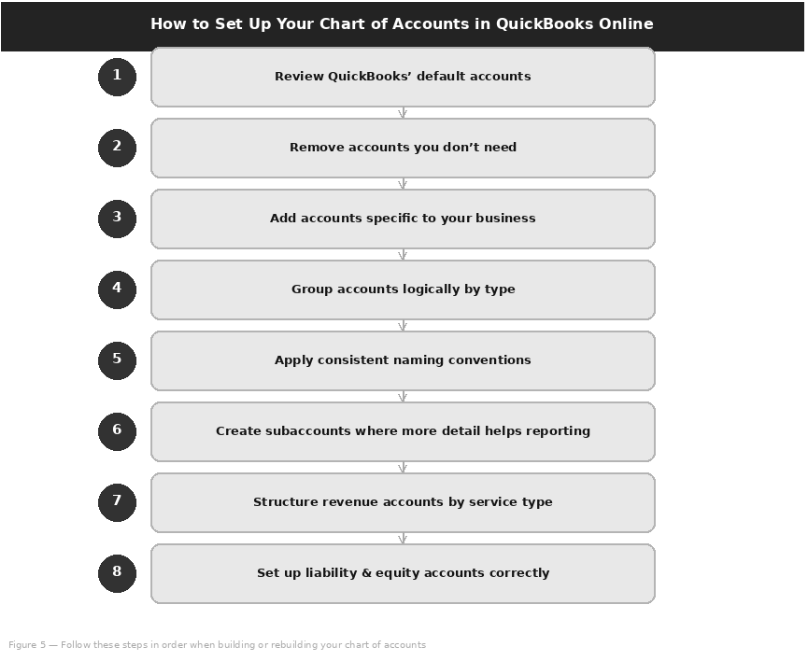
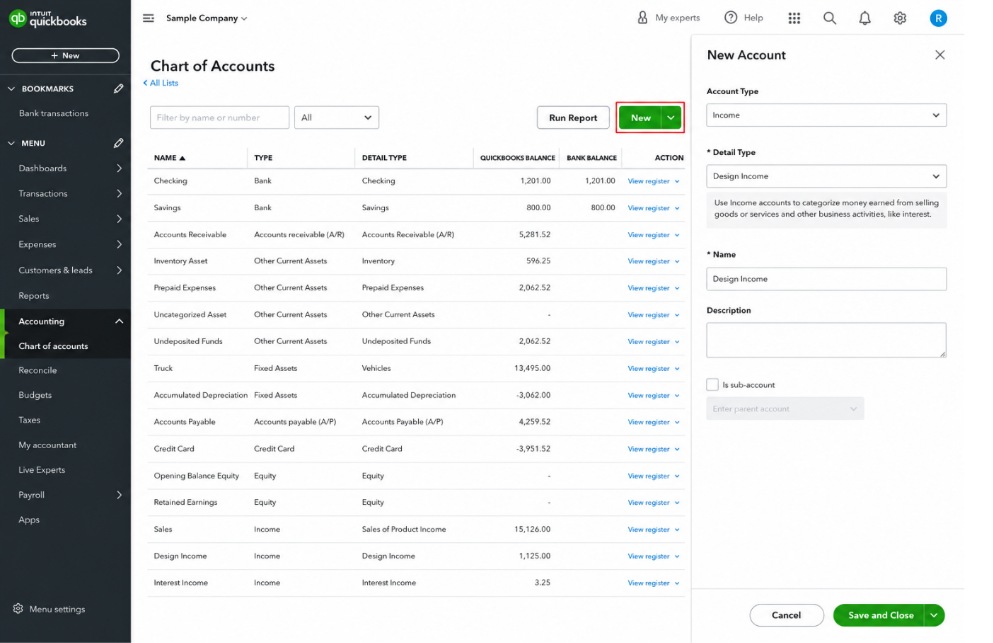
Adding a New Account in QuickBooks Online
The screen above is where every new account is created. The workflow is the same for every category:
Tip: Optional Account Numbering
QuickBooks Online lets you turn on account numbers under Settings → Account and settings → Advanced → Chart of accounts → Enable account numbers. Numbering is optional, but a consistent range per category keeps the list in a logical order. Intuit’s suggested ranges are:
| Account Number Range | Category |
|---|---|
| 10000–19999 | Assets |
| 20000–29999 | Liabilities |
| 30000–39999 | Equity |
| 40000–49999 | Income or Revenue |
| 50000–59999 | Job Costs or Cost of Goods Sold |
| 60000–69999 | Expenses or Overhead Costs |
Avoiding Excessive Detail
Throughout this process, the instinct to add “just one more account” for precision is strong. Resist it.
Rule of Thumb
If an account wouldn’t change a decision you make based on seeing it as its own line, it probably doesn’t need to be its own account.
Example Chart of Accounts for a Service-Based Business
Here’s what a clean, functional structure looks like in practice. This isn’t exhaustive, and your business may need a few additions, but it’s a solid foundation that most service businesses can adapt with minor changes.
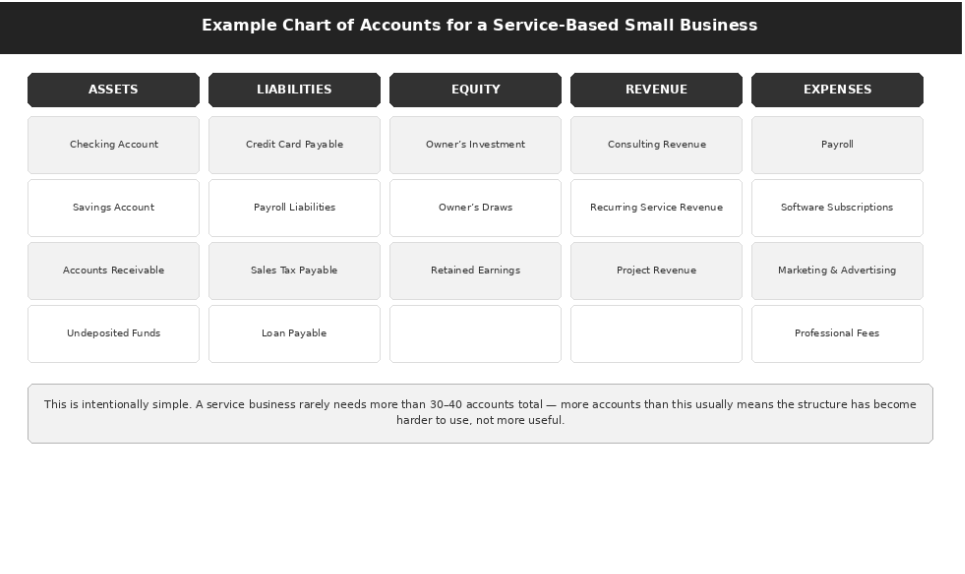
What a Good Chart of Accounts Looks Like
It’s worth stepping back and describing the end state you’re working toward. A good chart of accounts has a specific set of characteristics, and they’re all things you can check your own setup against.
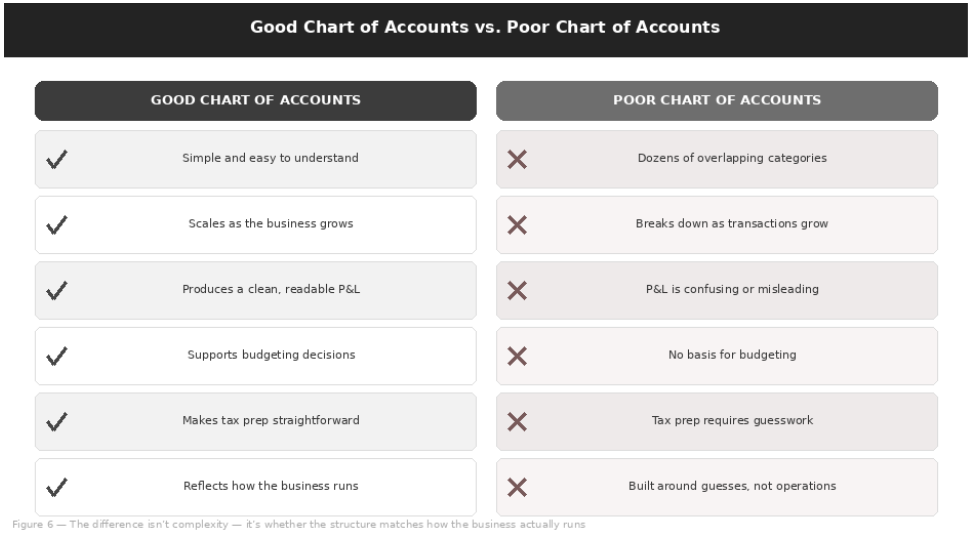
| Characteristic | What It Means in Practice |
|---|---|
| Simple and easy to understand | Anyone looking at the list of accounts should be able to understand roughly what each one represents without explanation. |
| Scalable as the business grows | The structure should accommodate new service lines, new team members, or new locations without needing to be rebuilt. |
| Produces clean profit and loss statements | Running a P&L should feel like reading a clear summary of the business, not deciphering a puzzle. |
| Supports budgeting and cash flow analysis | You should be able to set a budget against your actual account structure and meaningfully compare results. |
| Makes tax preparation easier | Your accountant should be able to map your accounts to tax return categories quickly, without extensive back-and-forth. |
| Allows for meaningful management reporting | You should be able to answer real business questions (profitability by service line, biggest controllable costs) directly from your reports. |
| Avoids unnecessary complexity | Every account earns its place. None exist just because they seemed like a good idea at the time. |
| Reflects how the business actually operates | The structure should match your actual services, your actual cost structure, and your actual decision-making needs, not a generic template. |
Simple Self-Test
Pull up your P&L right now. Can you explain what every line item means and why the number is what it is, without opening QuickBooks to investigate? If yes, your chart of accounts is doing its job.
Consequences of a Poor Chart of Accounts
It’s easy to treat chart of accounts setup as a minor technical detail. It isn’t. The consequences of getting it wrong show up in places that matter a great deal to a growing business.
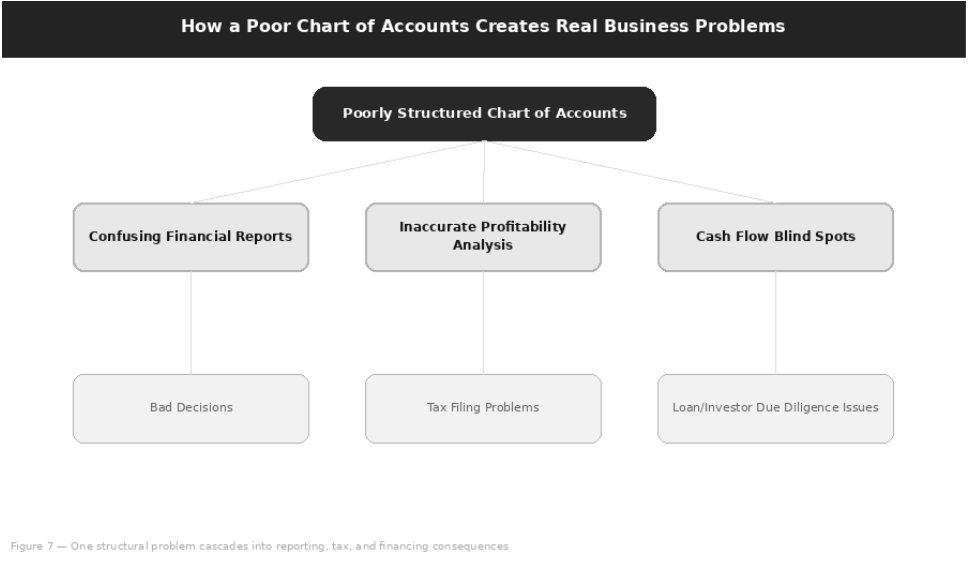
| Consequence | What It Looks Like in Practice |
|---|---|
| Confusing financial reports | When you can’t trust or understand your own reports, you stop looking at them, which means you stop using financial data to run the business at all. |
| Inaccurate profitability analysis | Without clean revenue and expense separation by service line, you genuinely don’t know which parts of your business are making money. |
| Difficulty preparing tax returns | Every hour your accountant spends untangling miscategorized transactions is an hour you’re paying for, and it increases the risk of errors on the return itself. |
| Increased bookkeeping cleanup costs | The longer a poor structure runs, the more transactions need to be reclassified later, and the more expensive the eventual cleanup becomes. |
| Poor decision-making | Pricing, hiring, and investment decisions made on unreliable numbers are, by definition, less likely to be the right decisions. |
| Cash flow blind spots | Without clear visibility into receivables, payables, and liabilities, cash flow surprises become much more likely. |
| Complications during audits or due diligence | If you’re ever audited, or if a buyer’s team reviews your books during an acquisition, a messy chart of accounts raises questions and slows the process down. |
| Problems when applying for loans or attracting investors | Lenders and investors review financial statements as part of their decision process. Statements that don’t hold together cleanly create doubt at exactly the moment you need confidence. |
The Bottom Line
A chart of accounts problem rarely stays contained. It starts as a reporting nuisance and ends up affecting tax preparation, cash flow, and how lenders, investors, or buyers see your business.
Fixing an Existing Chart of Accounts and Knowing When to Get Help
If you’ve read this far and recognized some of these problems in your own QuickBooks file, the good news is that a poor chart of accounts is almost always fixable. The question is how much work that fix requires, and whether it’s a project you should tackle yourself.
Signs Your Chart of Accounts Needs Restructuring
- You regularly can’t explain what a specific account represents.
- “Miscellaneous” or “Uncategorized” accounts have meaningful balances.
- You have multiple accounts that seem to represent the same thing.
- Your accountant asks the same clarifying questions every tax season.
- You can’t tell from your P&L which services are actually profitable.
- Owner contributions, loans, or retainers have ever been recorded as regular income.
How to Review Your Existing Accounts
Consolidating Duplicate Accounts
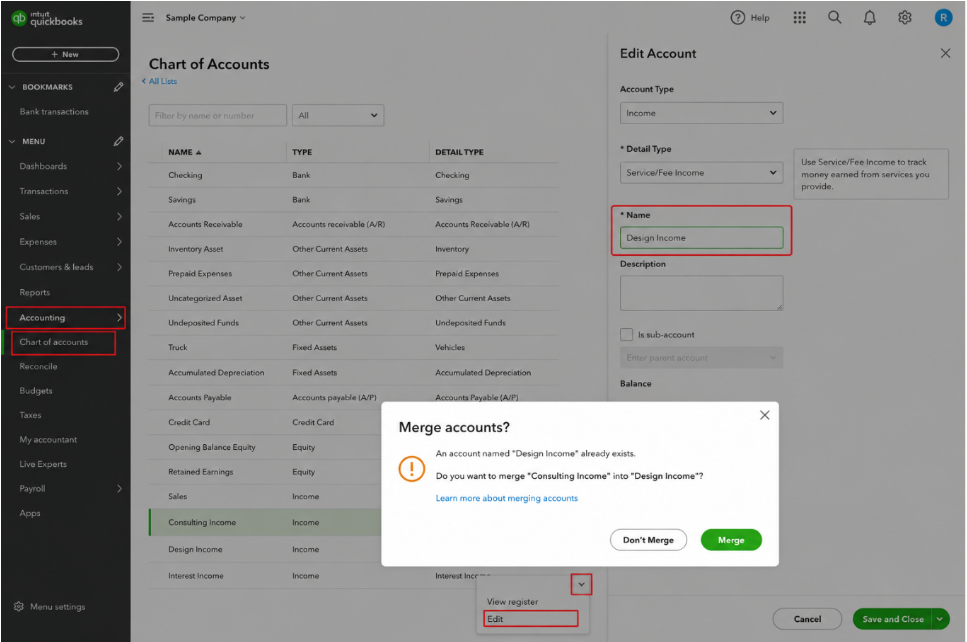
QuickBooks allows you to merge accounts that serve the same purpose. This combines their transaction history into one account going forward. Before merging, confirm which account name and account type you want to keep: the merge is one-directional and not easily reversed.
Important Note
- For QuickBooks to merge two accounts, the account name, account type, and detail type must match exactly, and both must sit at the same level (both top-level accounts, or subaccounts of the same parent).
- Merging is permanent and cannot be undone.
- Accounts connected to online banking must be disconnected before they can be merged.
- Save any reconciliation reports for the account being merged away before you merge.
- Newer QBO versions also include a Clean up option on the Chart of Accounts page that suggests duplicate accounts to combine. Changes approved there cannot be undone either.
Cleaning Up Miscellaneous Expense Categories
Go through every transaction sitting in a generic “Miscellaneous” account and reclassify it to a more specific, meaningful account. If a pattern emerges, such as several transactions that are clearly the same type of expense, that’s a sign you need a dedicated account for that category going forward.
Reclassifying Transactions Correctly
QuickBooks Online Accountant includes a Reclassify Transactions tool that allows bulk reassignment of transactions from one account to another, which is significantly faster than editing transactions individually. The same tool is also available in QuickBooks Online Advanced. If you don’t have accountant-level access, your bookkeeper or accountant can do this for you.
Should Historical Transactions Be Adjusted?
This depends on how far back the issues go and whether tax returns have already been filed for those periods.
| Situation | Recommended Approach |
|---|---|
| Issues within the current year | Minor reclassifications are usually straightforward. |
| Issues in prior, already-filed tax years | Changes require more care and should generally be discussed with your accountant before making changes, not after. |
When DIY Bookkeeping Becomes Inefficient
There’s a point where continuing to manage this yourself costs more in time and risk than it saves in fees. Signs you’ve reached that point:
- Cleanup keeps getting pushed to “next month.”
- You’re not confident your reports are accurate.
- The time you’re spending on bookkeeping is taking you away from billable client work.
What to Look for in a Bookkeeping Professional
| Capability | Why It Matters |
|---|---|
| Experience specifically with service-based businesses | Retail or product-business experience doesn’t translate directly to service revenue and payroll-heavy cost structures. |
| A clear process for reviewing and restructuring an existing chart of accounts | Maintaining whatever exists only preserves the problems you’re trying to fix. |
| Comfort working in QuickBooks Online specifically, including its Accountant Tools | Tools such as Reclassify Transactions make cleanup faster and more reliable. |
| Willingness to explain their categorization decisions | You should understand your own books, not have decisions made silently on your behalf. |
Questions to Ask Before Outsourcing Your Bookkeeping
| Question to Ask | What a Good Answer Sounds Like |
|---|---|
| Will you review and restructure my chart of accounts first? | Yes. We always start with a structural review before ongoing bookkeeping. |
| How do you handle historical reclassifications? | Carefully, and we’ll flag anything affecting already-filed returns before changing it. |
| Can you show me an example of a clean chart of accounts for a business like mine? | Yes, and we’ll tailor it to your specific services. |
| What reports will I get and how often? | Monthly P&L, Balance Sheet, and a short summary of anything that needs your attention. |
| How do you keep the structure from drifting back into a mess? | A monthly review process and consistent categorization rules we document for your team. |
Thinking About a Chart of Accounts Review?
A focused review, even a few hours with someone who knows what to look for, often reveals exactly what’s been making your reports hard to use. We’re happy to take a look at your current setup and tell you plainly what we find.
Resources
Frequently Asked Questions
It is the categorized list of every account your business uses to record transactions. Every invoice, bill, expense, and bank-feed transaction is assigned to an account on this list, and every QBO report (P&L, Balance Sheet, Cash Flow Statement) is built from it.
Assets (what the business owns), Liabilities (what it owes), Equity (the owner’s stake), Revenue (money earned from your services), and Expenses (the cost of running the business). Assets, liabilities, and equity appear on the Balance Sheet; revenue and expenses appear on the Profit & Loss statement.
Fewer than most people expect. A service business rarely needs more than 30–40 accounts in total. More accounts than this usually means the structure has become harder to use, not more useful.
The account type determines which financial statement the account appears on and how QuickBooks treats it. The detail type is a more specific sub-category within that type that helps describe what the account tracks.
If an account has transaction history, QuickBooks doesn’t allow true deletion. Instead, make it inactive: it disappears from your day-to-day views while its history stays in your records.
No. Owner contributions are equity, not revenue. Recording them as income overstates how much the business actually earned.
Not in full. A credit card payment is a transfer that reduces a liability. A loan payment is split: the principal reduces the loan liability, and only the interest is an expense.
Usually not in the traditional, inventory-based sense. However, direct costs tied to delivering a service, such as subcontractors, should be separated from general overhead so you can see true service margins.
No. QuickBooks lets you view reports in either basis, and the chart of accounts stays the same. It is still worth knowing which basis a report is showing when you review it.
Edit the account you want to remove so its name, account type, and detail type exactly match the account you want to keep, then save. QuickBooks will ask whether you want to merge them. Merging is permanent, so confirm which account to keep first.
Minor reclassifications within the current year are usually straightforward. Changes to prior, already-filed tax years should be discussed with your accountant before any changes are made.
Summary
Key Takeaways
Five categories hold everything.
Every account is an Asset, Liability, Equity, Revenue, or Expense, and its account type decides whether it appears on the Balance Sheet or the P&L.
Service businesses can stay simple.
No inventory accounts are needed, and a service business rarely needs more than 30–40 accounts in total.
Consistency beats complexity.
Twenty well-defined accounts used consistently outperform eighty used inconsistently.
Not every deposit is income.
Owner contributions, loan proceeds, and retainers are not regular income, and owner’s draws are never a business expense.
Split loan and card payments correctly.
Credit card payments reduce a liability; for loan payments, only the interest portion is an expense.
Structure around how you operate.
Separate revenue by service type and keep wages, payroll taxes, benefits, and direct delivery costs distinct.
Inactivate and merge with care.
Make unused accounts inactive and merge true duplicates, remembering that merging in QuickBooks is permanent.
Fix it early.
Cleanup costs grow over time, and changes to already-filed tax years should be discussed with your accountant first.
Final Thoughts
Conclusion
The chart of accounts is the one part of your QuickBooks setup that touches everything else. Get it right, and your reports become genuinely useful, your tax preparation gets faster, and you have real visibility into how your business is performing. Get it wrong, and every other part of your bookkeeping inherits that problem: quietly, until it isn’t quiet anymore.
The good news is that this isn’t complicated to fix. It’s a matter of understanding the five categories, being deliberate about what accounts you actually need, applying consistent naming, and reviewing the structure periodically as your business changes.
Want a Second Opinion on Your Setup?
If you’d like us to review your current chart of accounts and tell you honestly what’s working and what isn’t, get in touch. No obligation: just a clear picture of where things stand and what it would take to clean them up.
Resources
Further Reading & Official Resources
Intuit QuickBooks Online Help
- Intuit: Chart of Accounts in QuickBooks Online
- Intuit: Add an Account to Your Chart of Accounts
- Intuit: Account Type and Detail Types in QuickBooks Online
- Intuit: Use Account Numbers in Your Chart of Accounts
- Intuit: Manage Default and Special Accounts
- Intuit: Clean Up Your Chart of Accounts in QuickBooks Online
- Intuit: Reclassify or Move Multiple Transactions